
Why removing preinstalled apps matters
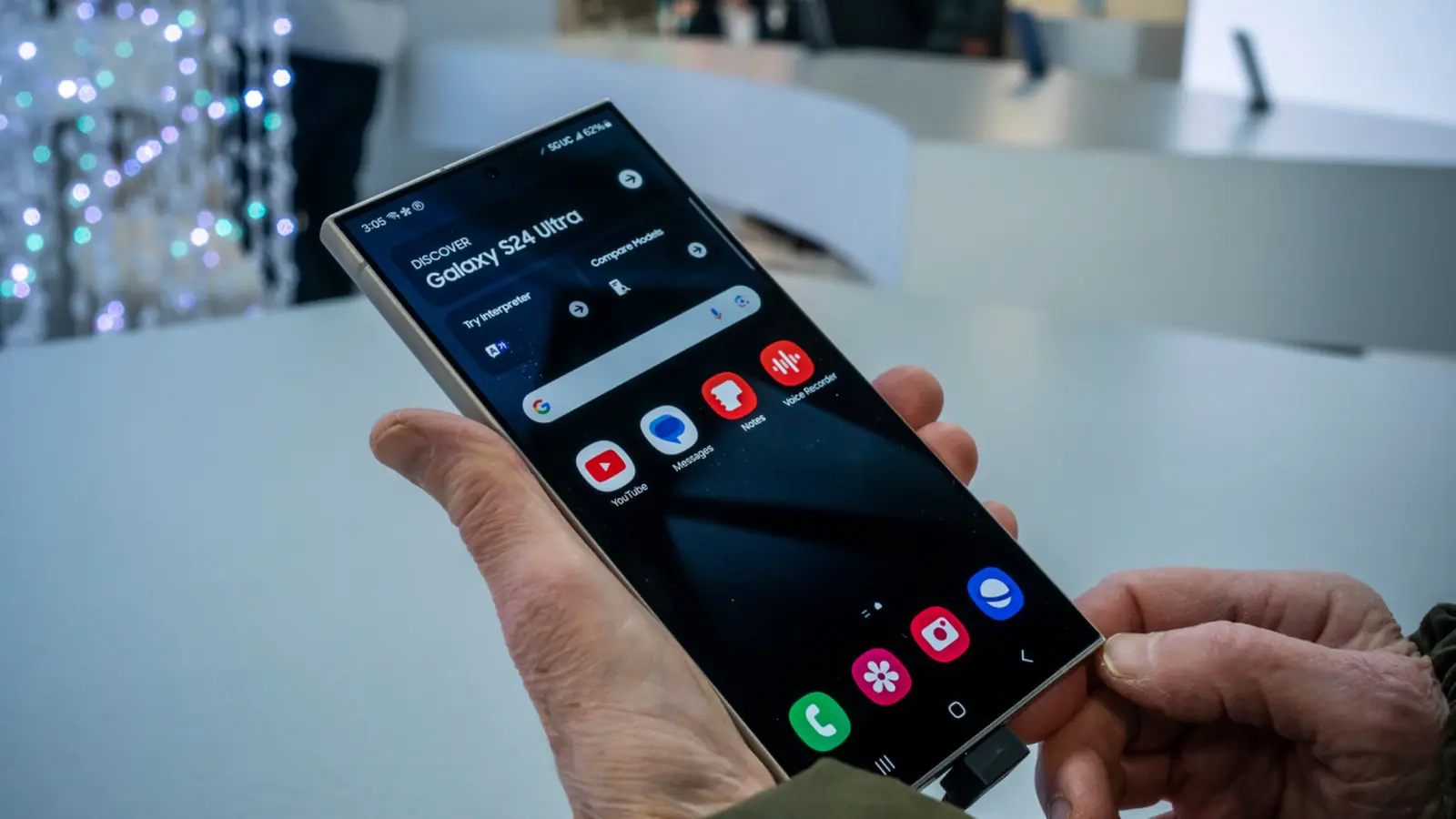
New phones almost always arrive with a handful of preinstalled apps you never asked for. Some manufacturers are worse offenders than others: Google Pixel phones tend to be relatively 'clean', while many Samsung Galaxy models include several partner apps and services. Beyond aesthetics, bloatware can clutter your home screen, eat storage, and in some cases affect battery life and background performance. If you prefer alternate apps or simply want a leaner device, it pays to know what you can remove, what you can only disable, and when to call in advanced tools.
What you can (and can't) uninstall
Not all preinstalled apps are equal. Whether an app is removable depends on the device, the version of Android, and whether the app is treated as a core system component by the manufacturer.
- On Pixel phones you can uninstall things like Google Play Games and Google Play Books, and some apps added during setup (for example, the Pixel Watch app or NotebookLM may be removable depending on your configuration). However, core Google services such as Chrome, Drive, Maps, and Calculator are usually locked in.
- On Samsung Galaxy phones, several native apps are safe to remove and many users delete them right away: Global Goals, Samsung Free, Samsung TV Plus, Samsung Shop, and Samsung Kids. Even so, some Samsung apps remain locked into the system.
Practical uninstall steps:
- Pixel: Open the Google Play Store, tap the profile icon, select Manage apps & devices > Manage, find the app and tap Uninstall.
- Samsung: Go to Settings > Apps, choose the app and tap Uninstall > OK. You can also long-press an app icon on the home screen and drag or tap Uninstall.
If the uninstall option is missing, you can usually at least disable the app to hide it and stop it from running.
How to disable preinstalled apps
Disabling built-in apps hides them from the app drawer and prevents them from running background processes, though they continue to occupy storage space.
- Pixel: Settings > Apps > See all apps, select the app, and tap Disable.
- Samsung: From the home screen, open Home Screen Settings > Hide apps, pick the apps to hide, and press Done. You can also disable apps from Settings > Apps if the uninstall button is not available.
When you disable an app, consider clearing its cache and storage first to reclaim some space. Also note that receiving major system updates may re-enable certain components.
Advanced removal: using ADB
If you are determined to remove apps that are otherwise locked, Android Debug Bridge (ADB) provides a command-line route. Common ADB usage involves connecting your phone to a PC, enabling USB debugging, and issuing package manager commands like 'pm uninstall --user 0 package.name'. This permanently removes the app for the current user but can carry risks:
- OTA updates may restore some packages.
- Removing the wrong package can break system features.
- Warranty or support channels may be reluctant to assist if system integrity is altered.
Only attempt ADB if you understand package names and have backups. Community forums like XDA Developers have lists and scripts, but proceed with caution.
Benefits, challenges, and future outlook Removing or disabling bloatware makes phones feel faster and cleaner, and it reduces distractions. Challenges include locked system apps, the occasional need to keep a vendor service for specific features, and the risk of unintended side effects. The industry trend is mixed: some OEMs are reducing preinstalls and making more apps optional, but carrier or partner deals will likely keep some bloatware around. Android's modular app model and user demand for choice suggest that newer devices will continue to give users more control over what stays on the phone.
Tips for a cleaner phone:
- Audit apps soon after setup and remove or disable what you don’t use.
- Use a third-party launcher to declutter your home screen without uninstalling apps.
- Clear cache or uninstall app updates to free space when you cannot uninstall.
- Back up before using advanced removal tools like ADB.

“Blockchain and fintech are reshaping finance. I break down market trends, regulations, and innovations for a global audience.”

Discussion
Leave a Comment
Comments (2)
Is ADB really safe for casual users? Feels risky to rm system apps, support might void warranty, and OTA updates can restore stuff... But neat tutorial if you know pkg names.
Wow, I never realized how much junk Samsung packs in. Did a clean on my old phone and battery life actually got better, kinda wild. Gotta backup first tho.