
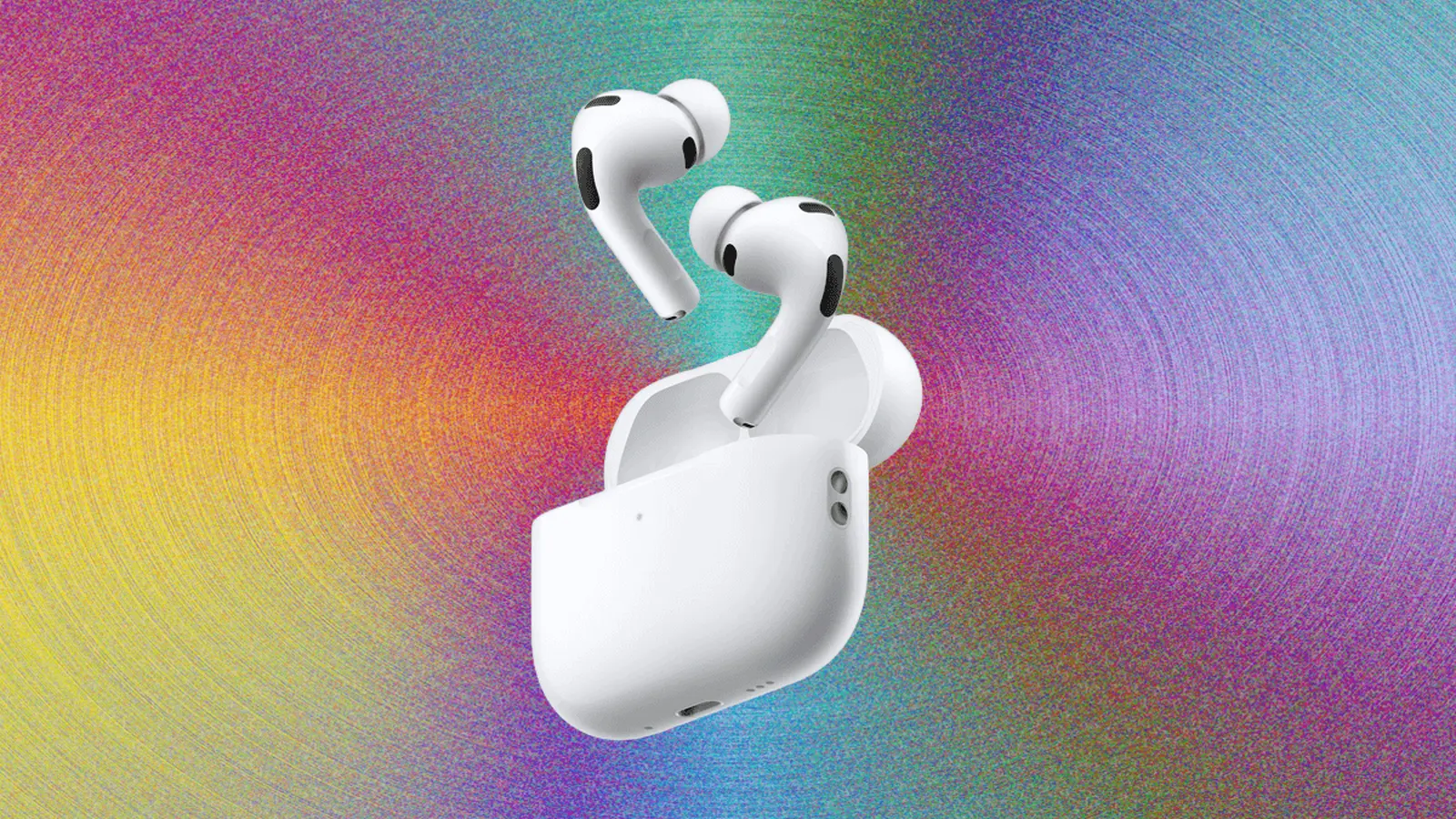
AirPods are at their best inside Apple’s ecosystem, but they’re also surprisingly easy to use with Android phones, Windows laptops, and just about any Bluetooth device. The trick is knowing where pairing works automatically — and when you need to switch to manual pairing mode.
Pairing AirPods with Apple devices is almost instant
Apple designed AirPods for friction-free setup. In most cases, you simply open the charging case near an unlocked iPhone or iPad. A pairing card pops up, you tap Connect, and the AirPods link not only to that device but also to other Apple hardware on the same iCloud account.
Once that’s done, everyday use becomes effortless. Audio can jump between your iPhone, iPad, and Mac automatically (as long as your devices are updated and signed in with the same Apple ID). It’s the kind of feature you only notice when it works well — and it usually does.
If the pop-up doesn’t appear, a few quick checks often solve it:
- Open Control Center and check the audio output menu to see if your AirPods are already listed.
- Go to Settings > Bluetooth and confirm Bluetooth is on and the AirPods are in range.
- Keep the case open while you’re on the Bluetooth screen — this often triggers the pairing prompt again.
On a Mac, the steps are similarly straightforward: head to System Settings > Bluetooth, find your AirPods, and connect. If your AirPods are already paired to your iPhone, they may show up automatically for your Apple Watch as well.
Newer iPhones can feel faster thanks to H2 features
If you’re using newer AirPods models with the H2 chip, pairing can feel even snappier on recent iPhones such as the iPhone 15 Pro, iPhone 15 Pro Max, and the iPhone 16 lineup. The phone tends to detect the earbuds with less delay, and switching audio sources can feel more responsive and reliable.
No prompt? Keep it simple: make sure your iPhone is unlocked, Bluetooth is enabled, and try closing the case for a few seconds before reopening it near the phone. If the AirPods were connected to something else moments ago, that brief reset can help the iPhone take over.
How to put AirPods into pairing mode (any model)
Manual pairing is essential when you’re connecting AirPods to a non-Apple device — or when Apple’s quick setup doesn’t show up. The exact method depends on your AirPods generation:
- AirPods with a setup button: Open the lid, then press and hold the button on the back of the case until the status light flashes white.
- Newer models with touch-based pairing (for example, AirPods 4 and AirPods Pro 3): Open the lid and tap the area near the front status light to enter pairing mode.
Leave the lid open to keep them discoverable. If you close the case, the pairing window ends, and you may need to repeat the steps.
One more practical tip: pairing mode doesn’t erase existing connections. So if your AirPods keep snapping back to a nearby iPhone or tablet, temporarily turning off Bluetooth on that device can make pairing with a new device much easier.
How to connect AirPods to Android phones
On Android, AirPods behave like standard Bluetooth earbuds. Put them in pairing mode, then open your phone’s Bluetooth settings and look for them in the available devices list. Tap to connect, and you’re ready for calls, music, podcasts — the basics work reliably.
Some Apple-specific features won’t carry over. Automatic device switching and certain spatial audio behaviors remain tied to Apple’s ecosystem, and Android may not show battery status without a third-party app.
If they don’t appear, refresh the Bluetooth device scan and confirm the AirPods are still in pairing mode (the white flash won’t last forever). Reopen the case and re-enter pairing mode if needed.
How to pair AirPods with a Windows 11 laptop
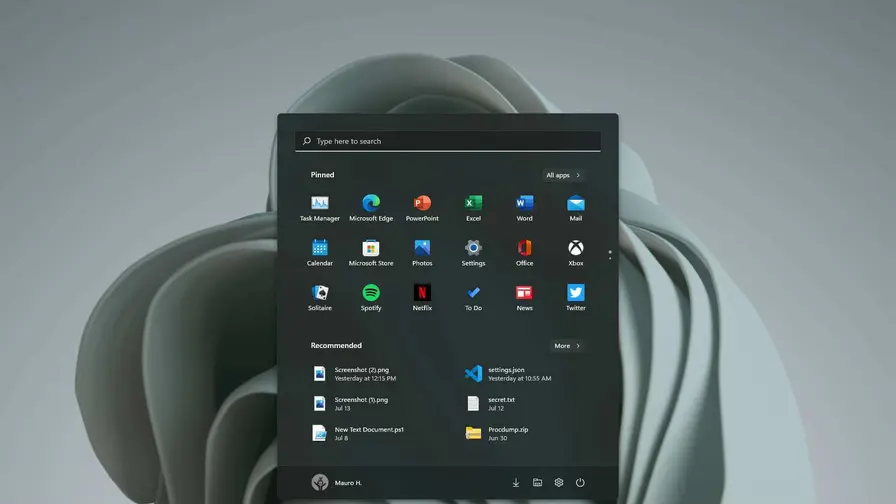
Windows 11 treats AirPods as a normal Bluetooth audio device. Open Settings > Bluetooth & devices, add a new device, and select your AirPods when they appear. After the first setup, Windows typically reconnects automatically whenever Bluetooth is enabled and the earbuds are nearby.
If your AirPods don’t show up:
- Toggle Bluetooth off and back on to restart scanning.
- Make sure the AirPods aren’t actively connected to a nearby phone or tablet.
- If Windows seems stuck, disable Bluetooth on the other device so your laptop can take over the connection.
Troubleshooting: when AirPods won’t pair
Most pairing problems come down to two things: the AirPods aren’t discoverable, or they’re still clinging to a previous connection. A reset solves many stubborn issues.
Reset AirPods with a setup button: Put the AirPods in the case, keep the lid open, then press and hold the setup button until the light turns amber and then flashes white.
Reset newer button-free models: Put the AirPods in the case, close the lid for about 30 seconds, then open it and quickly tap the front of the case three times. The light should flash amber and then white to confirm the reset.
Also check the basics: low battery can interrupt setup, and crowded wireless environments can make discovery flaky. If pairing keeps failing, move to a quieter spot (or switch off nearby Bluetooth devices) and try again.
Once your AirPods are paired, they usually remember the device and reconnect automatically — making day-to-day use simple whether you’re on iPhone, Android, or Windows.


“Blockchain and fintech are reshaping finance. I break down market trends, regulations, and innovations for a global audience.”

Discussion
Leave a Comment
Comments (2)
Is automatic switching really reliable between iPhone and Mac? Mine sometimes stays stuck on Mac, has anyone fixed that without resetting?
Wow pairing is really that seamless? I gotta try with my old Android. Also that tip about closing the case is gold, saved me before lol