
If you rely on a single laptop both on the road and as your primary desktop machine, you already know the daily ritual: sit down at your desk, plug in the charger, hook up two monitor cables, dig out a USB hub for your SD cards and external drives, and stare down a tangled nest of wires. Modern docking stations promise a cleaner exit from that mess—hide all the cables behind one box and bring your entire workstation back to life with a single USB-C connection.
That pitch carries even more weight in Europe now. With the EU’s common charger directive extending to laptops in spring 2026, USB-C has effectively become the universal charging standard for new machines across the continent. In that landscape, a dock that handles power, video, and data through that one port stops feeling like a luxury accessory and starts looking like the logical centerpiece of any desk.
I have been pushing the European version of the Baseus Spacemate RD1 Plus hard as the hub of my daily setup. Baseus gave this 14-in-1 dock a serious trump card: a built-in 140W GaN power supply. That means it doesn't just replace a pile of dongles—it gets rid of the bulky external power brick cluttering the floor under your desk, leaving only a standard AC cord running to the wall. The real question is whether living with it day to day feels as effortless as the spec sheet suggests.
Design, Ergonomics, and a Screen That Ends the Guesswork
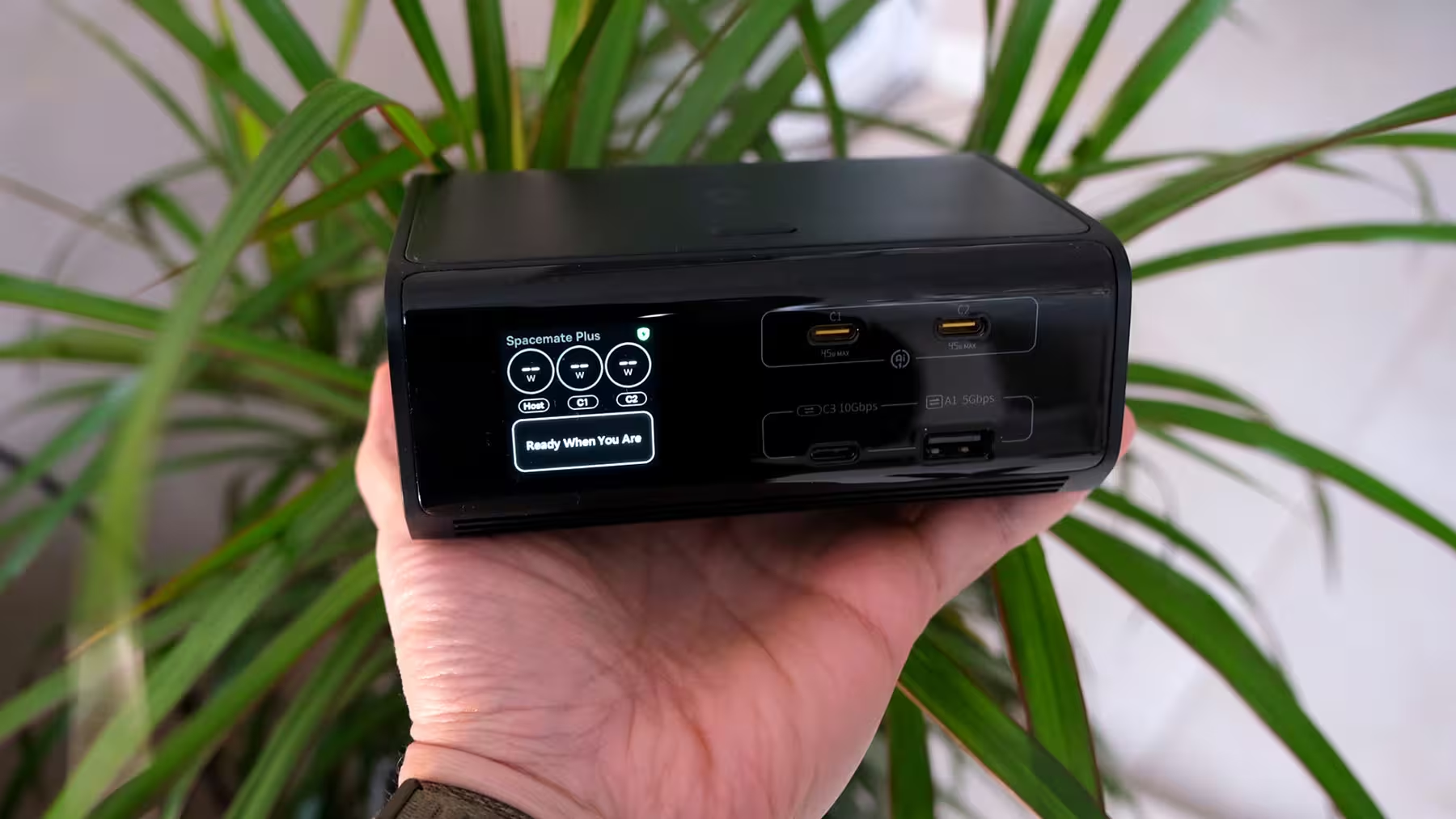
The first thing you notice when picking up the RD1 Plus is its heft. At roughly 902 grams on its own—and right around a kilogram with the power cord—this is no lightweight travel dongle. That density is the trade-off for housing the power supply inside the chassis, which also makes the RD1 Plus slightly larger than the standard RD1 (which relies on an external adapter). There is an upside to the bulk, though: stiff, heavy cables plugged into the rear won’t drag the unit across your desk.
 |  | 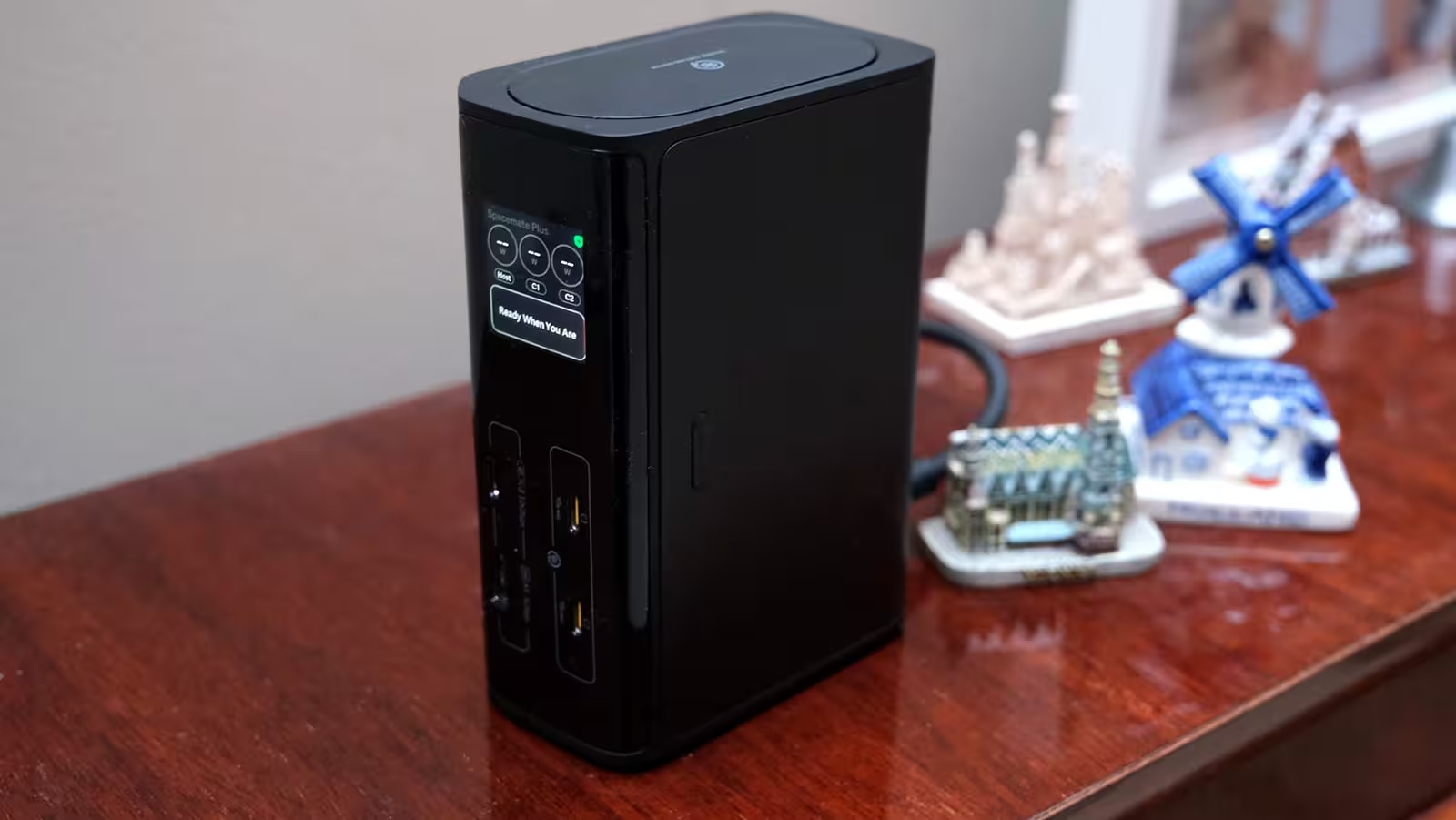 |
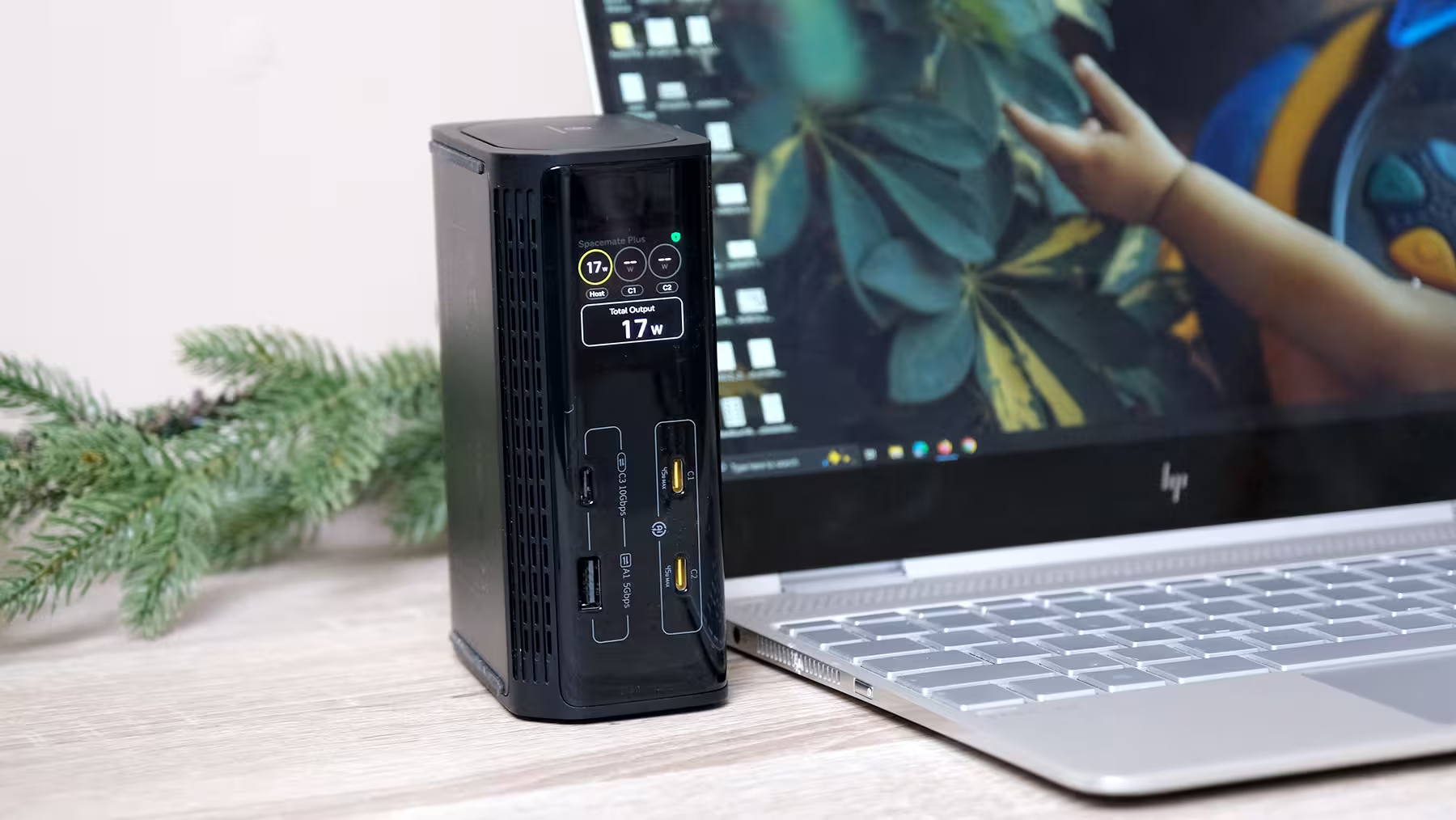
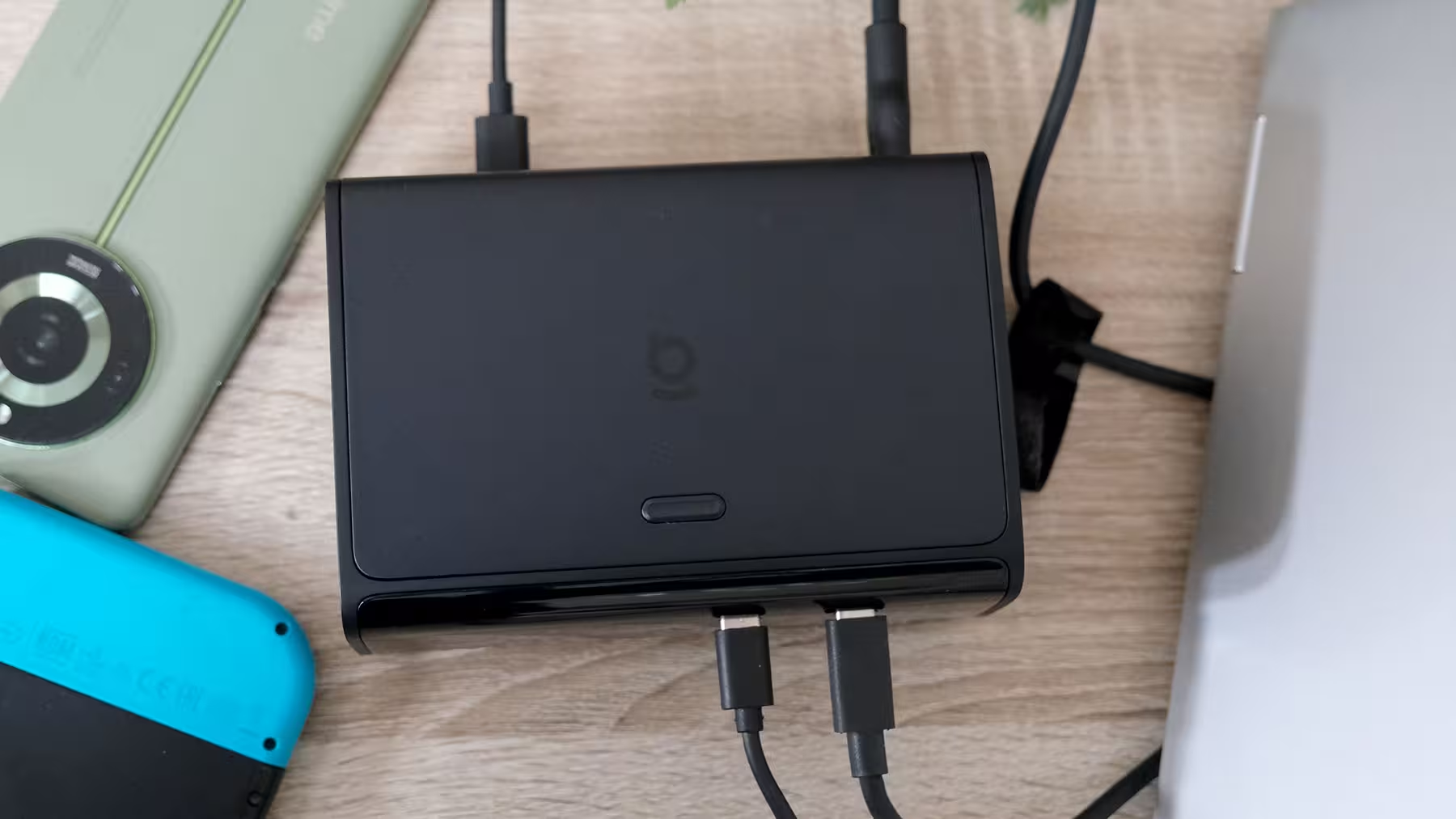
The main shell wears a matte finish that shrugs off fingerprints, though the glossy front panel is a different story—it catches smudges easily and is noticeably more prone to scratches. You can stand the dock upright like a mini tower or lay it flat beneath a monitor stand, and the rubberized surfaces mean you don't need a separate base for either orientation. On a crowded desk, I ended up preferring the horizontal layout under my display. Even with the rubber feet, standing it vertically can cause the dock to slide around slightly when you wrestle with tighter cables. Lying flat eats up more desk footprint, sure, but it blended into my desktop setup far better.
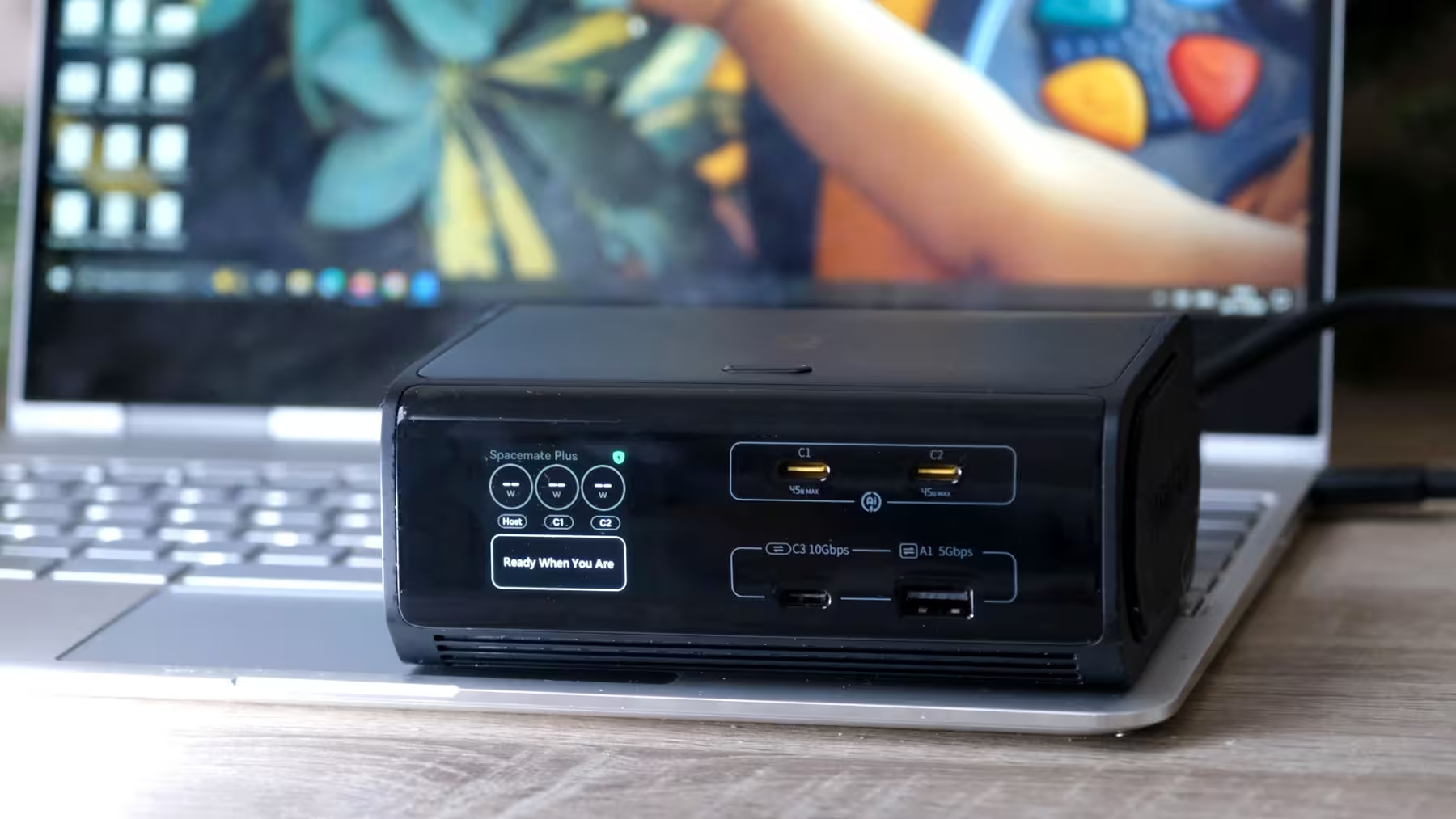
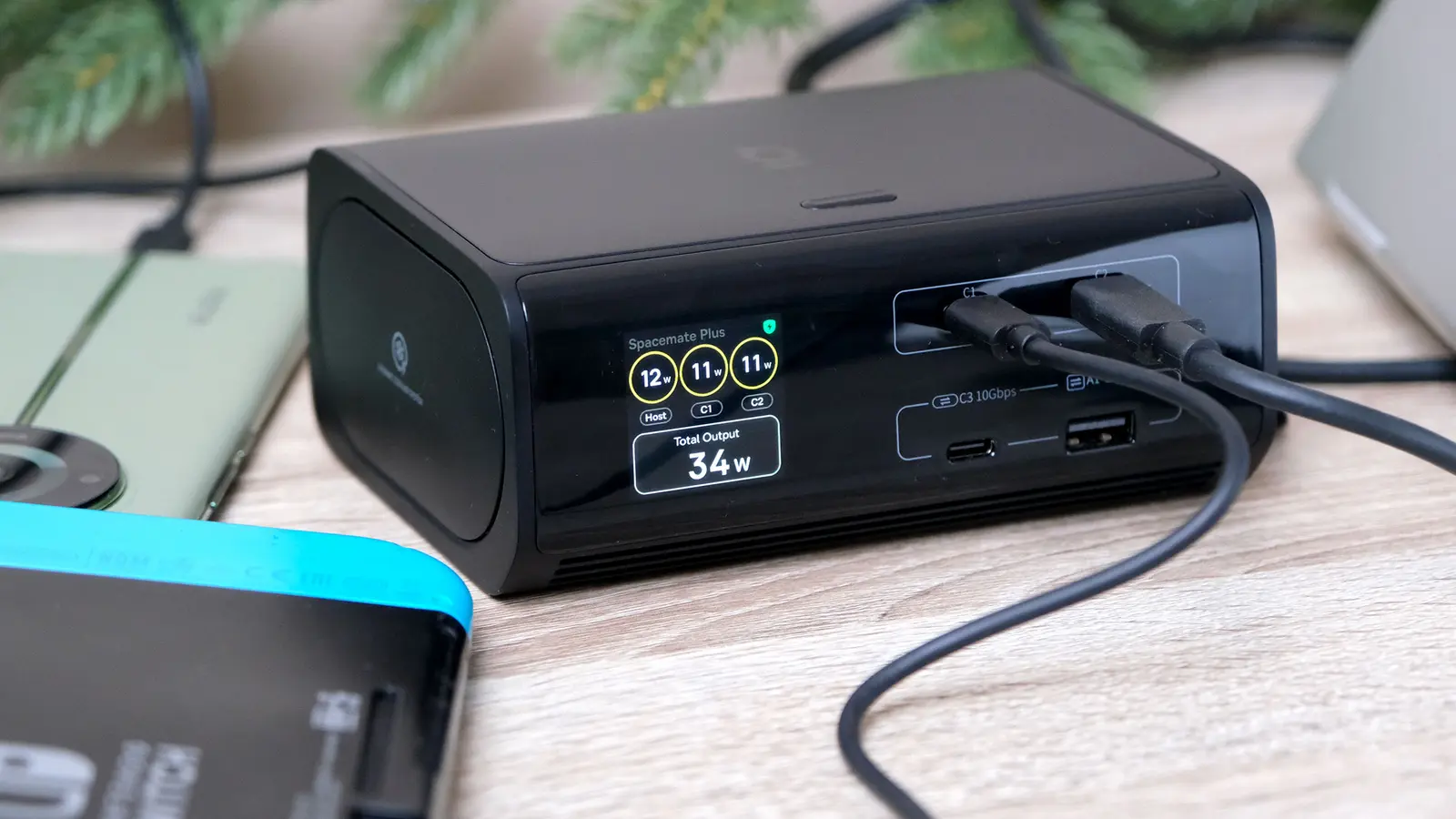
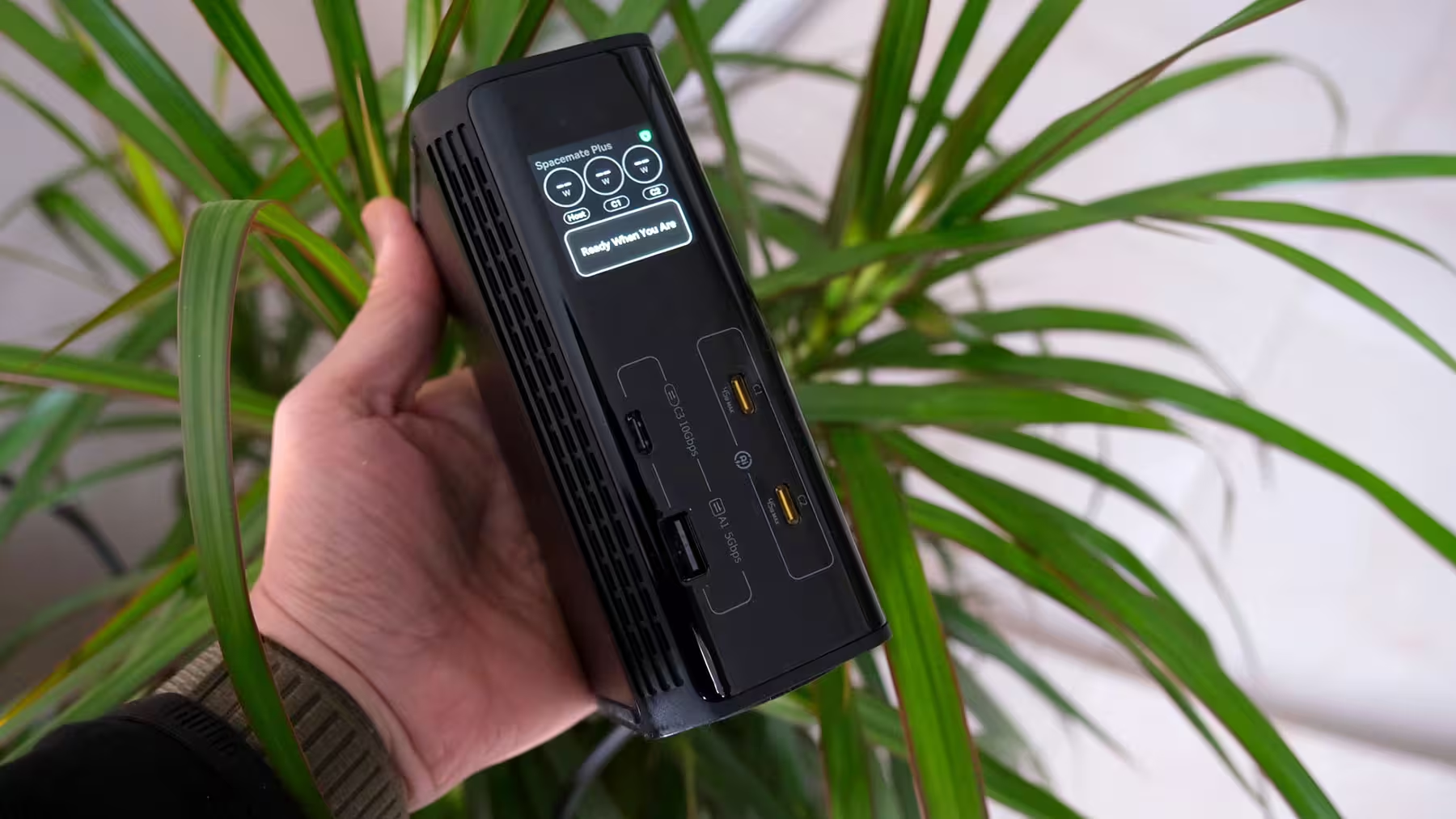
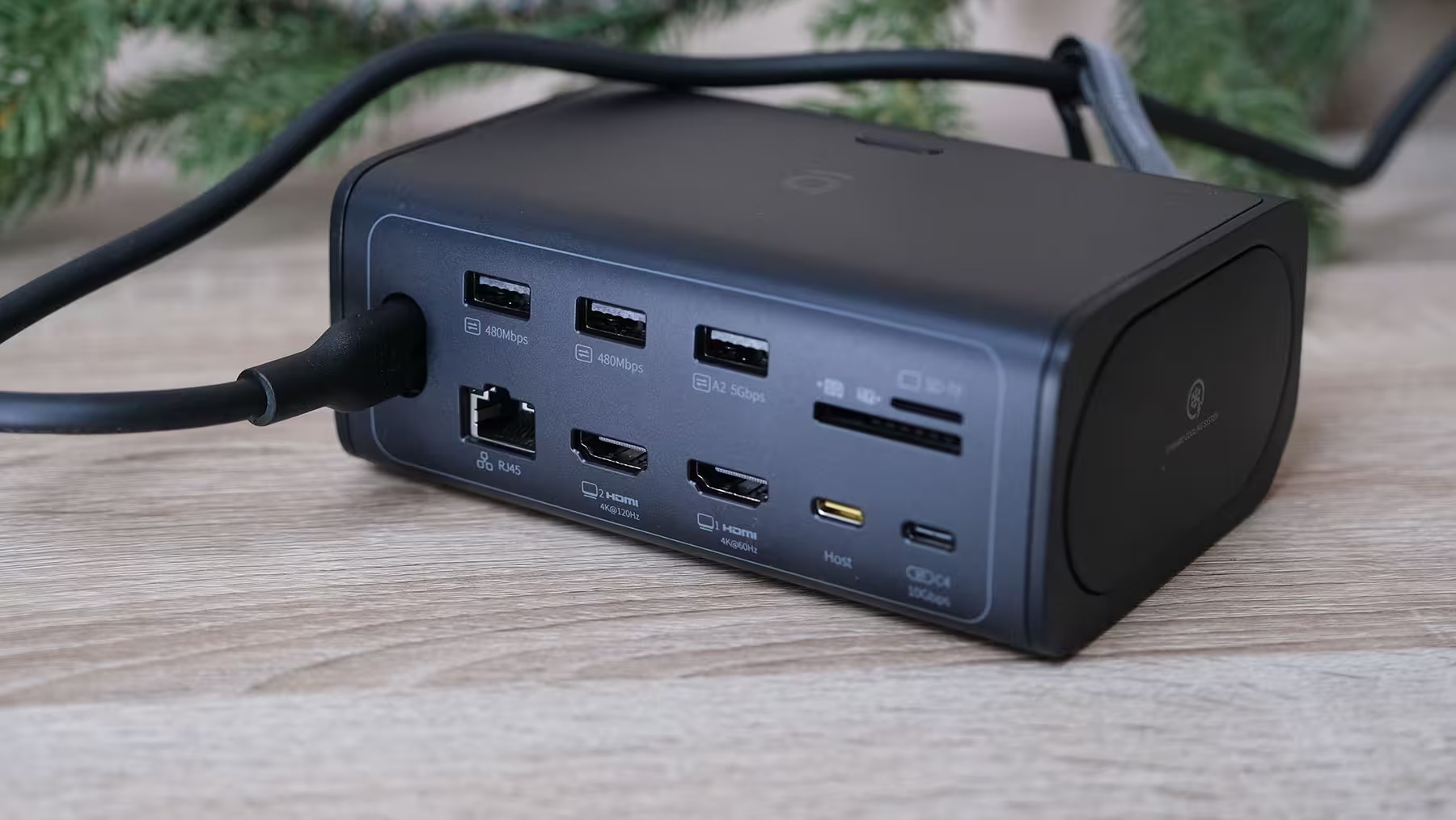
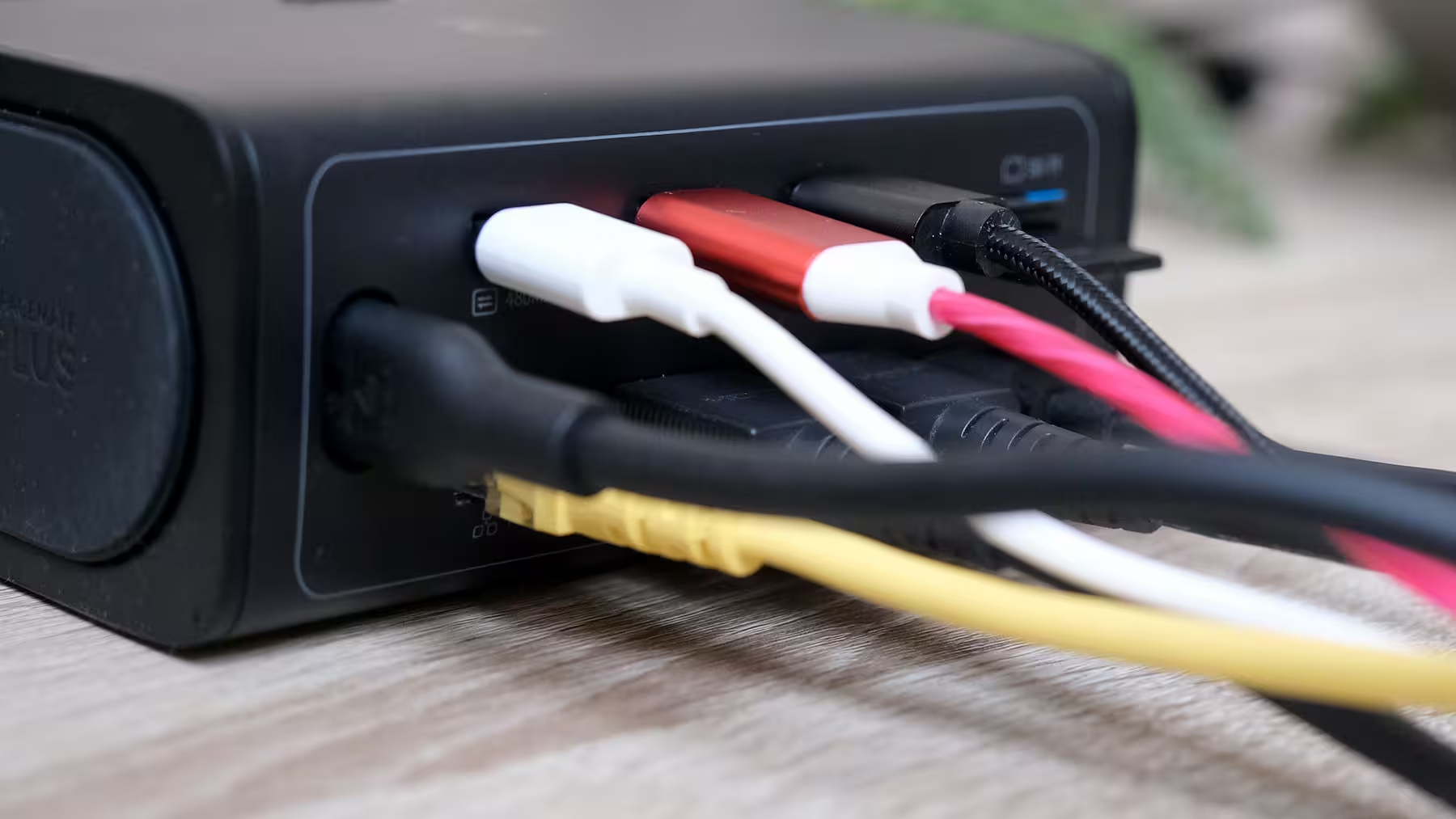
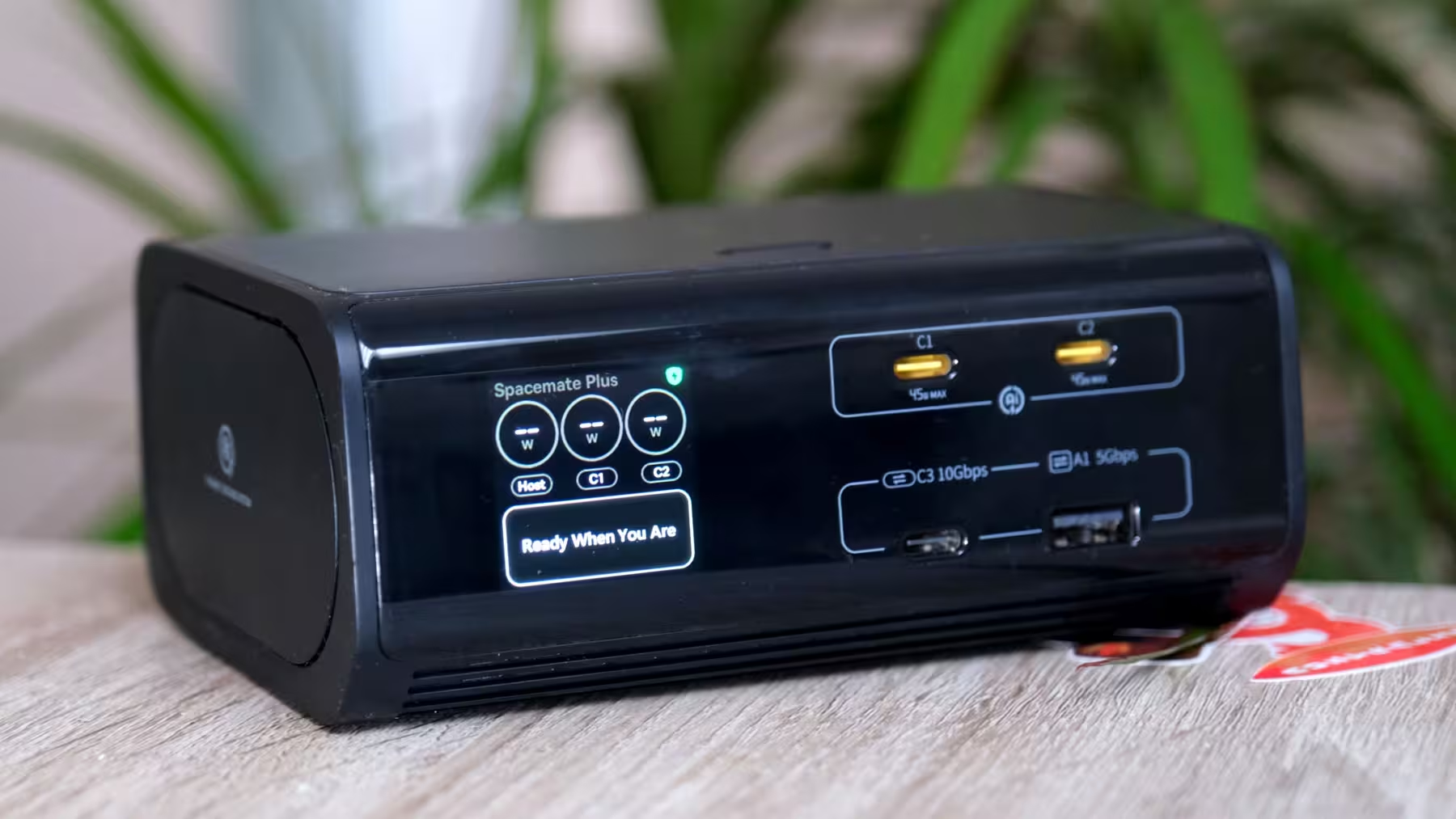
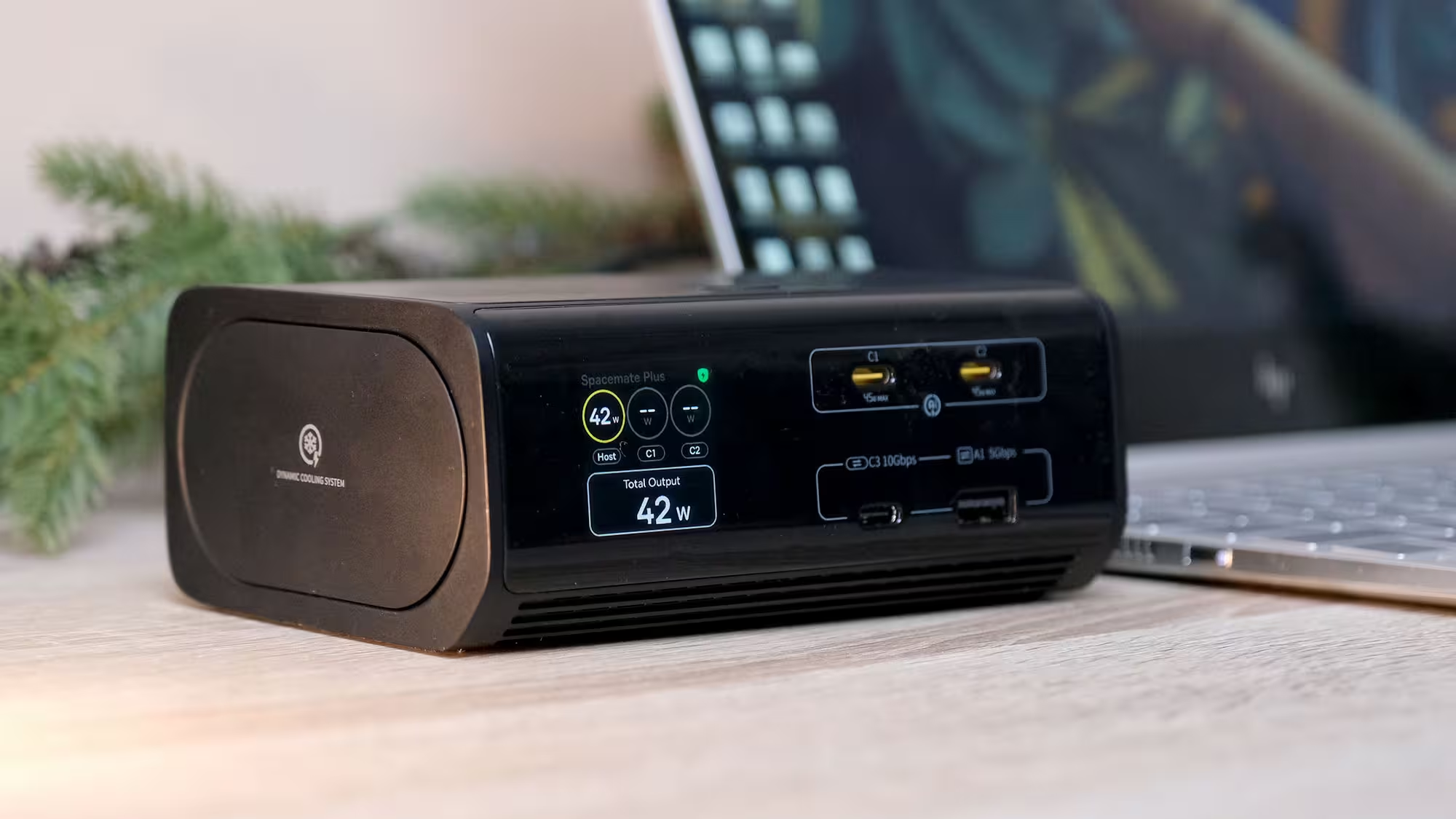
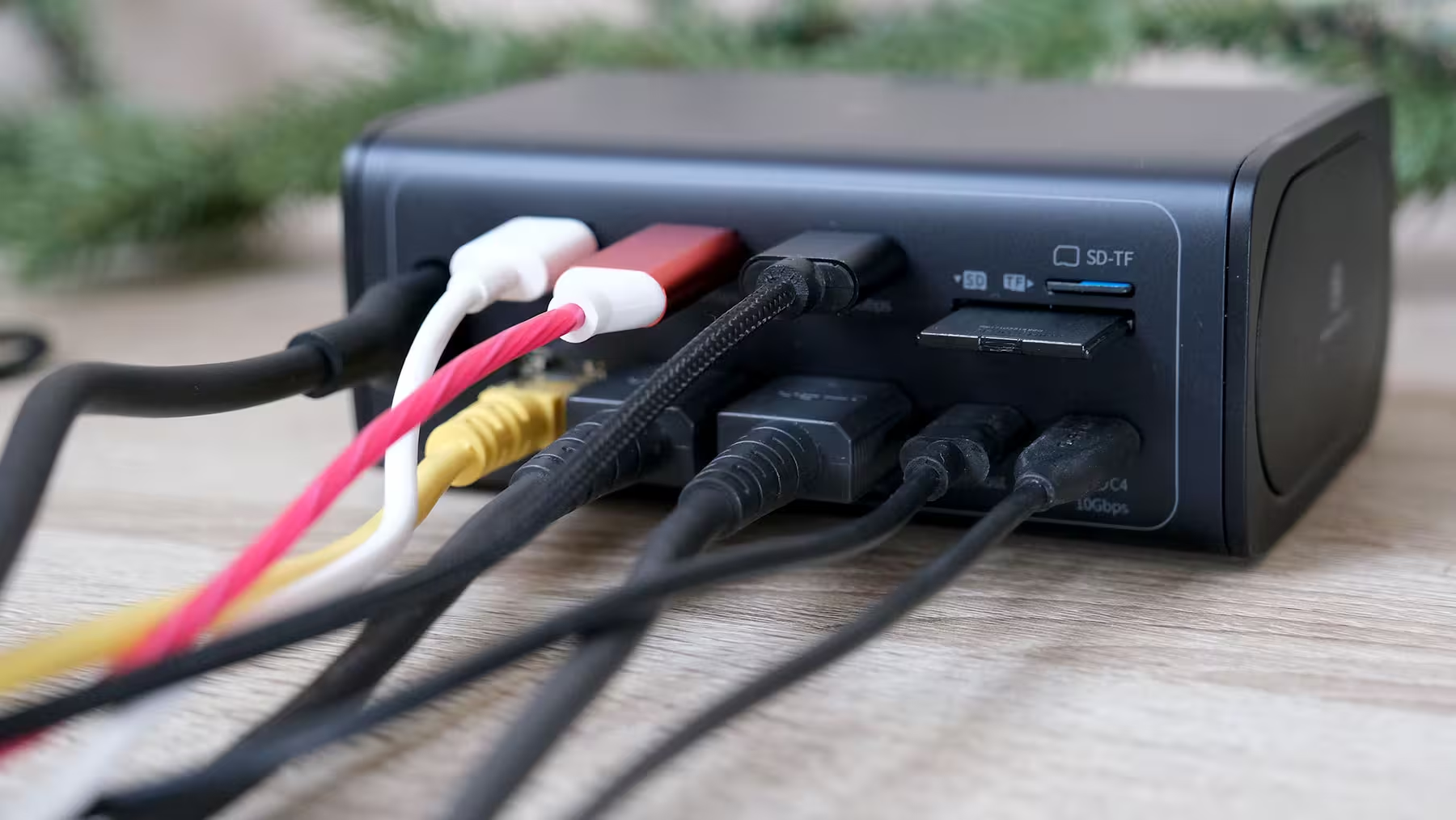
Baseus put genuine thought into the port layout. Everyday connections sit up front, semi-permanent cables live in the back, and fast-charging ports are clearly color-coded in yellow. Around the rear, the yellow Host port delivers up to 100W to your laptop while carrying video and data. Alongside it sit two HDMI ports, Gigabit Ethernet, SD and microSD card slots, one 10Gbps USB-C port, one 5Gbps USB-A port, and two USB 2.0 ports tailor-made for mouse and keyboard receivers. Up front, you get two yellow 45W USB-C ports (charging only, no data) paired with fast-access data ports: one 10Gbps USB-C and one 5Gbps USB-A.
The visual highlight is the 1.5-inch color display on the front face. At first glance, a screen on a dock can feel like a gimmick, yet in daily use it quickly earns its keep. It displays real-time wattage draw for your laptop and both front charging ports individually, shows which data ports are active, and flags overcurrent, overvoltage, or short-circuit faults in red. Better still, it tells you whether your laptop's port or USB-C cable actually supports video output—saving you the usual five minutes of blind cable-swapping.
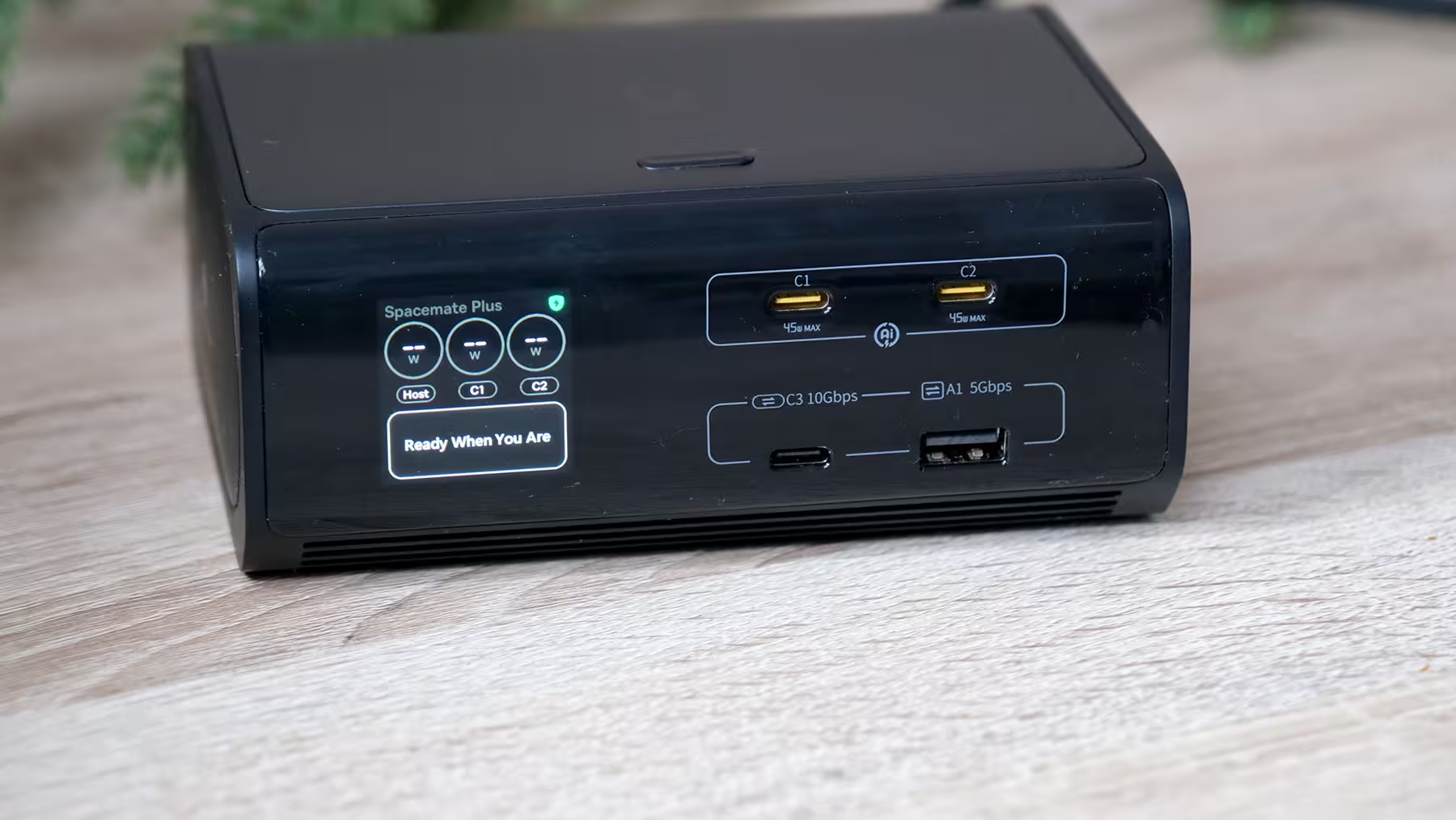
It isn't flawless. The panel isn't touch-sensitive, there are no menus or settings to tweak, and it completely omits status indicators for the HDMI outputs and rear USB 2.0 ports. Video alerts also vanish fairly quickly; look away at the wrong moment and you'll miss them. Auto-rotation between vertical and horizontal orientations is built in, too, though it isn't smartphone-instant and occasionally takes a bit of patience to flip. Still, most people place a dock once and leave it there.
The Privacy Button: Smart Concept, Inconsistent Execution
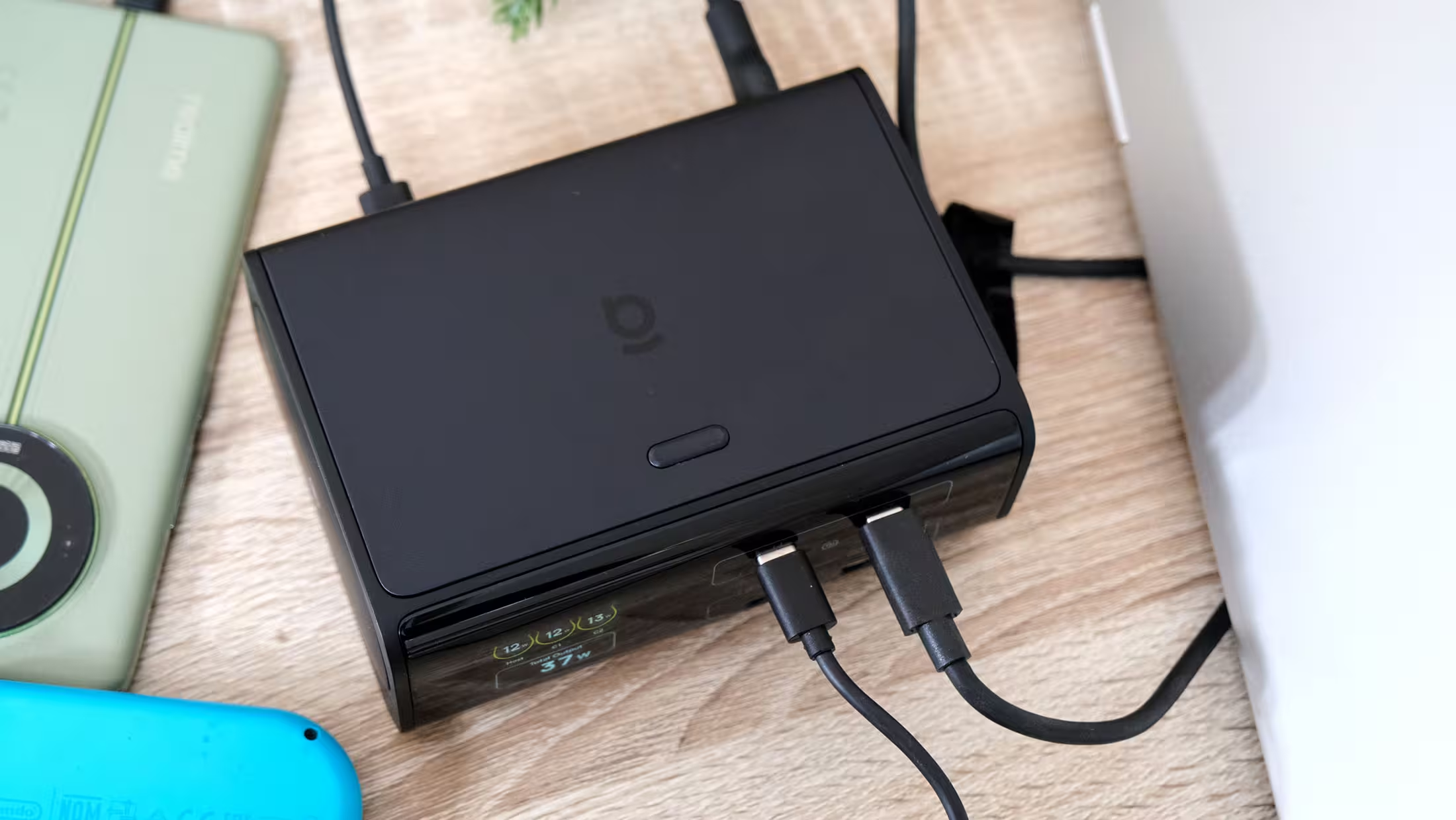
Up top sits a dedicated physical "privacy" button. A short press switches off the dock's front display, while holding it for roughly two seconds locks your connected Windows PC. It is a genuinely clever touch—especially if your laptop lives closed inside a vertical stand and you want to lock your workstation before stepping away.
In practice, however, the button feels finicky. Sometimes you have to hold it noticeably longer than two seconds before Windows responds, and on a few occasions the short press stopped working altogether until I triggered a full lock first. It is also built squarely around Windows; Mac users will still find Control+Command+Q faster and more reliable.
Baseus Spacemate RD1 Plus Specifications
| Feature | Specifications |
|---|---|
| Official Name | Baseus Spacemate RD1 Plus 14-in-1 (WIN) |
| Dimensions & Weight | Approx. 13.6 × 9.7 × 5.5 cm / approx. 902 g (without cable) |
| Internal Power Supply | 140W GaN with standard AC cord (no external brick) |
| Max Total Output | 120W shared across Host and front charging ports (PowerTune 3.0) |
| Host Charging | Up to 100W Power Delivery (prioritized) + video and data |
| Front Charging Ports | 2 × USB-C up to 45W (power only, no data or video) |
| Video Outputs | HDMI 2.1 (up to 4K at 120Hz) + HDMI 2.0 (up to 4K at 60Hz) with Retimer chip |
| Data Ports | 2 × USB-C (10Gbps), 2 × USB-A (5Gbps), 2 × USB-A 2.0 (480Mbps) |
| Networking & Card Readers | Gigabit Ethernet (RJ45) + SD / microSD (SD 3.0 / UHS-I, up to 104 MB/s, up to 2TB) |
| Display | 1.5-inch color LCD with auto-rotation |
| Cooling | Internal fan and ventilation slots |
| OS Compatibility | Windows 10/11, macOS, Linux (driver-free); dual extended displays on Windows only |
| Official European MSRP | €269.99 |
Real-World Performance: Rock-Solid on Windows, a Warning Sign for Mac
The highest compliment you can pay a docking station isn't reciting a checklist of flashy specs—it's forgetting the thing is even there while you work. On that front, the RD1 Plus delivers. Setup is completely driver-free on Windows and even Linux. More importantly, waking my laptop from sleep or reconnecting after working elsewhere brought both monitors and all peripherals straight back without hesitation, flickering, or scrambled window layouts—a headache that still plagues plenty of pricier docks. Much of that stability comes down to an internal Retimer chip that keeps the video signal clean between your laptop and displays.
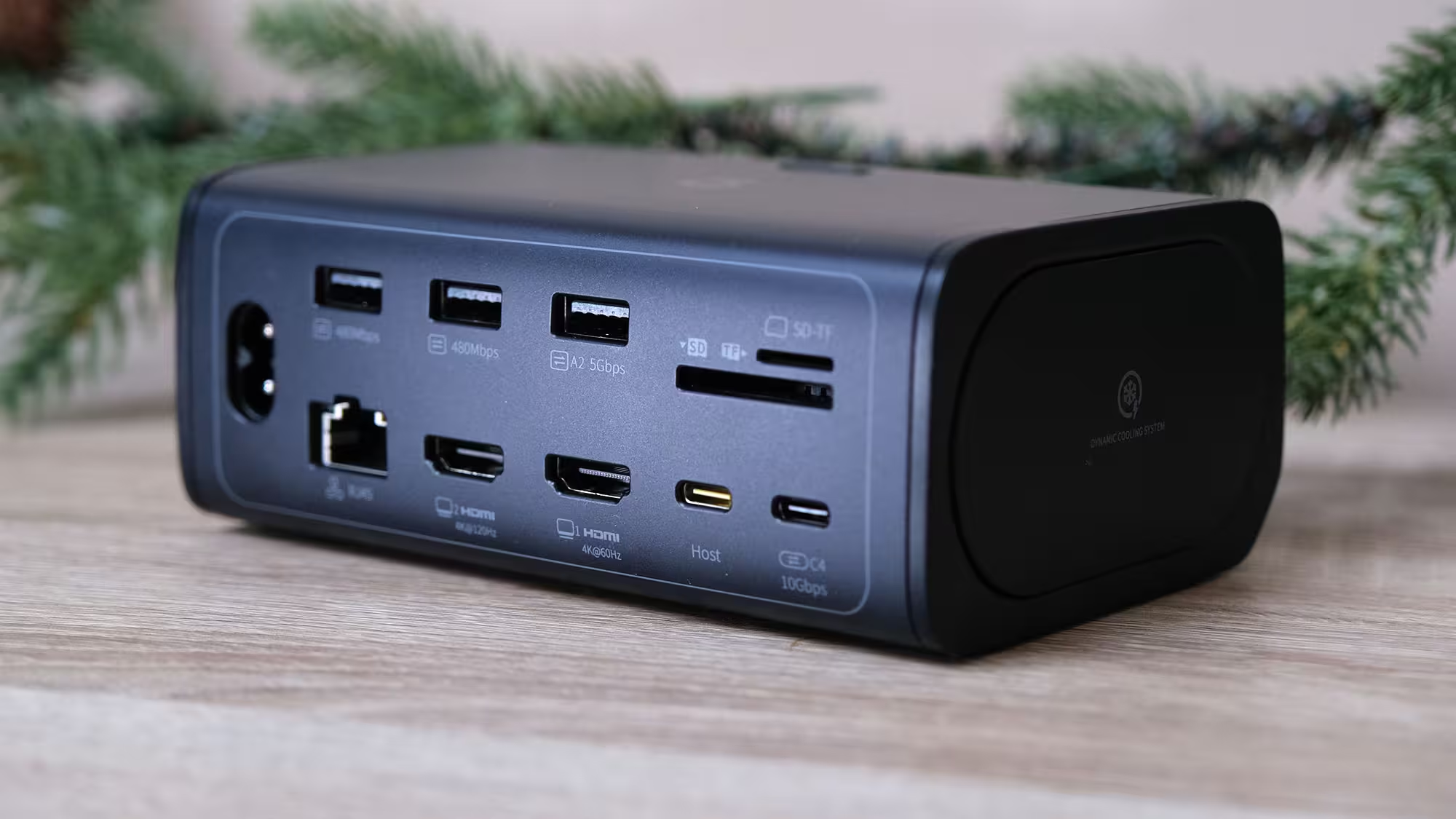
You do need to pay attention to display bandwidth, though. On a Windows laptop supporting DisplayPort 1.4 with Display Stream Compression (DSC), you can run either a single 4K monitor at 120Hz (via HDMI 2) or dual extended 4K displays at 60Hz—assuming your monitors and HDMI cables meet HDMI 2.0 or newer specs. On older laptops without DSC, dual-monitor output drops to 2K at 60Hz, and DP 1.2 ports cap you at dual 1080p. Also keep in mind that the rear Host port is the only USB-C input capable of receiving video, so it requires a cable supporting DisplayPort Alt Mode or Thunderbolt.
For Apple users, there is a hard caveat—one Baseus acknowledges right in the product's "(WIN)" designation. Because macOS does not support Multi-Stream Transport (MST) over USB-C, plugging two monitors into this dock will not give you two independent extended desktops; macOS will only mirror them. If you use a Mac with a single external monitor, the RD1 Plus gets the job done (though hitting 120Hz depends on your display and cable, and 16-inch MacBook Pros will charge slower under heavy workloads than they do on Apple's own brick). Anyone wanting a dual-monitor MacBook setup should look at Thunderbolt or DisplayLink docks instead.
Charging Power, Thermals, and the Simple Math of 120W
Building a 140W GaN power supply directly into the chassis is easily the smartest decision Baseus made here. It uses a standard Figure-8 AC power cable, meaning no proprietary brick to lug around and zero hassle finding a replacement cord anywhere in Europe. Baseus’s PowerTune 3.0 dynamically divides the 120W total output budget while keeping your laptop at the front of the queue.
Just keep the math in mind. Add up the rated ceilings of all three charging ports (100W + 45W + 45W) and you get 190W, yet the actual shared ceiling is 120W. If your laptop pulls the full 100W, the two front yellow ports are left sharing roughly 20W between them. For ultrabooks and everyday work laptops—which rarely pull anywhere near 100W continuously—that headroom is plenty. Heavy gaming laptops or mobile workstations that demand more than 100W, along with certain power-hungry Dell and HP models using proprietary charging protocols, may occasionally trigger slow-charging alerts under sustained load.
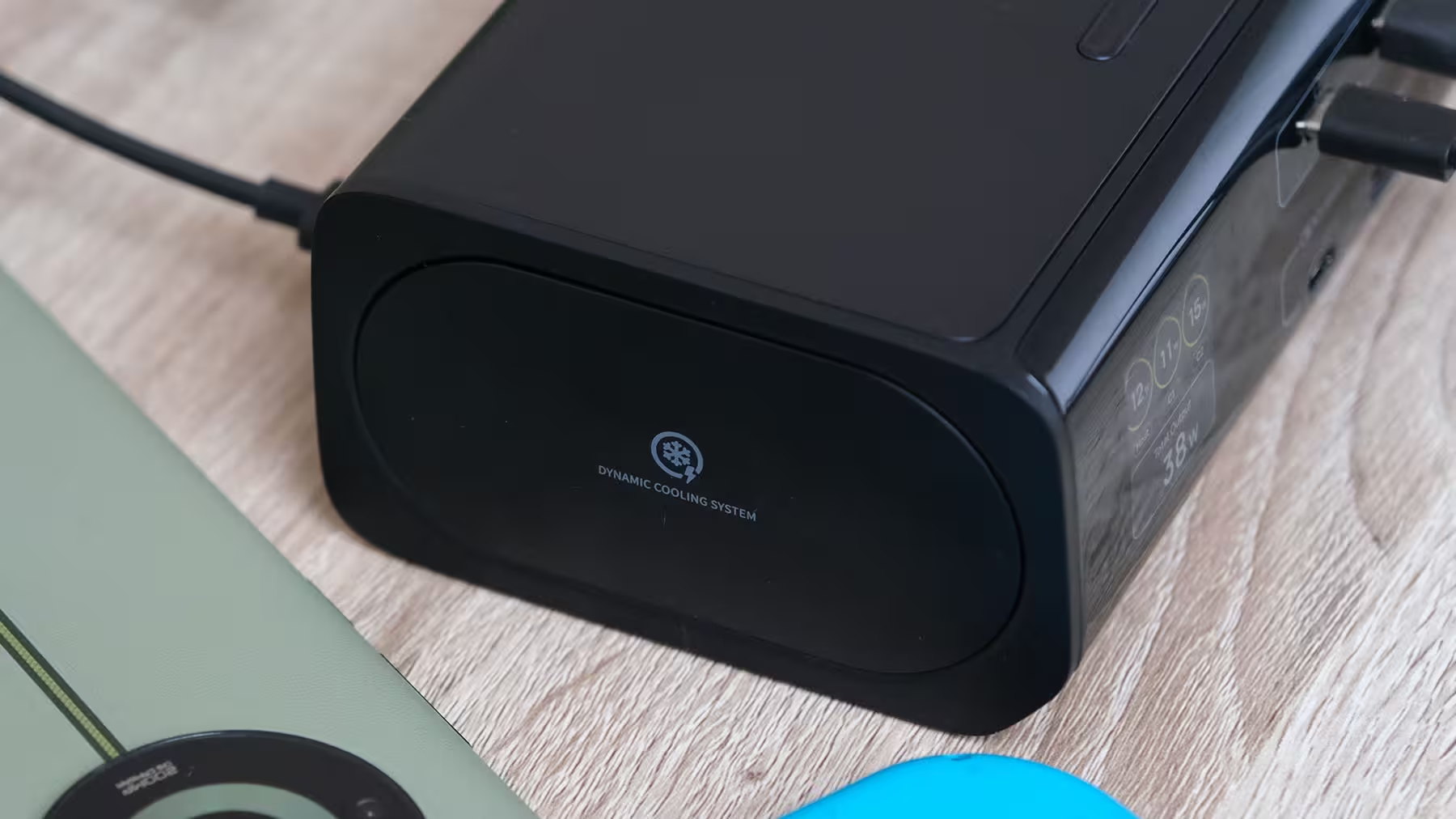
When pushing dual 4K displays, 100W charging, and fast SSD transfers simultaneously, the casing gets noticeably warm, though never alarmingly hot. Even with an internal fan and cooling vents on board, you should leave breathing room around the unit—especially if you plan to tuck it under a desk or inside an enclosed shelf.
Two Missing Features You Actually Feel: Wireless Charging and a Headphone Jack
After living with the RD1 Plus for a few weeks, two omissions stand out more than anything else—not because they are impossible to engineer, but because Baseus has already proven it can pull them off.
No wireless charging pad: Its sibling, the Spacemate RD1 Pro, packs a pop-out 25W Qi2.2 magnetic charging pad right on top, letting you prop your phone vertically or horizontally while it tops up. The RD1 Plus has the footprint and top surface for it, and your phone is almost certainly sitting on the same desk every day. Having even a modest Qi2 pad built in would have eliminated the very last cable on the desk. From an engineering standpoint, the trade-off makes sense: with a 120W shared budget and an internal PSU already generating heat, adding a 25W wireless coil would squeeze the front ports and complicate thermals. Still, even a lower-priority Qi2 pad would have elevated a 14-in-1 dock considerably.
No 3.5mm audio jack: On a desktop dock, a headphone jack is one of those boring essentials you never think about until it disappears. Wired headsets for video calls, desktop speakers, and studio headphones all rely on it—and when your laptop is tucked closed in a vertical stand, reaching the laptop's own jack isn't practical. Again, the RD1 Pro includes one, and adding a USB audio codec to a dock of this size and price is neither expensive nor technically challenging. As it stands, your workaround is plugging a USB-C audio dongle into the front, wasting one of your two fast 10Gbps ports on basic audio.
Other Drawbacks to Know Before Buying
An overly short host cable: The bundled USB-C host cable measures just 70 cm. That works fine if your laptop sits right beside the dock, but if you want to route the hub cleanly behind a monitor stand or beneath your desk, the cable pulls tight and forces you to spend extra on a longer video-capable USB-C cable.
HDMI only—no DisplayPort or USB-C video: Video output is restricted strictly to the two HDMI ports; none of the downstream USB-C ports carry a display signal. If your monitor relies on DisplayPort, or if you want single-cable hookup for a portable USB-C display or pen display, you are out of luck. With DisplayPort and USB-C monitors becoming increasingly common across modern setups, this is arguably the RD1 Plus's most serious limitation.
10Gbps shared bandwidth ceiling: Because the host connection runs on USB 3 rather than USB4 or Thunderbolt, hammering multiple high-speed SSDs, Gigabit Ethernet, and peripherals simultaneously splits that single 10Gbps pipe. Realistically, most everyday users won't hit this bottleneck often, though heavy media workflows will notice.
No physical power switch: Because the power supply sits inside the unit, the dock stays faintly warm even when nothing is connected. Aside from yanking the power cord out of the back, there is no way to switch it off—a simple hardware power toggle would have been a welcome touch.
Pros
- Built-in 140W GaN power supply completely eliminates the laptop power brick
- Rock-solid, driver-free Windows stability with no window-layout scrambling after sleep
- Supports single 4K at 120Hz or dual extended 4K at 60Hz on compatible Windows laptops
- Practical 1.5-inch diagnostic display for live wattage tracking and cable checks
- Flexible vertical or horizontal placement with well-organized, color-coded ports
Cons
- HDMI only—no DisplayPort and no video output over downstream USB-C
- Dual monitors on macOS are restricted to mirroring only
- Bundled 70 cm host cable is too short for hidden desk routing
- Missing wireless phone charging, a 3.5mm headphone jack, and a physical power switch

“Some times I write about breakthrough startups, digital ecosystems, and how innovation is changing the way we build businesses.”

Discussion
Leave a Comment
Comments (5)
Feels a bit overhyped. Nice screen and power, but HDMI-only and shared 10Gbps are real compromises. Wireless charging woulda sealed it.
I've had a similar dock, the 70cm host cable drove me nuts. No audio jack made calls awkward when laptop was vertical, small annoyances add up.
Is it really driver-free on macOS? Article keeps saying WIN variant, so I'm skeptical, will my M1 actually do dual displays or just mirror?
Makes sense tbh. Built-in PSU is the main win, but 120W shared means you gotta watch power distribution for heavy loads.
Wow, 140W GaN inside? That's wild. No brick is slick, but no headphone jack feels like a weird miss. Still, love the little status screen...