
Which device has the latest version of the project? Did I leave yesterday's raw footage on the laptop, or did I copy it over to that silver portable drive? Did we offload the photos from our last trip off our phones, or is the only copy still sitting there?
If your daily work revolves around content creation, video editing, and moving heavy files around, you know these questions all too well. The problem usually isn't a lack of storage space; it's fragmentation. One external drive for archives, another for shuttle transfers, a few folders scattered across a desktop and a laptop, and smartphones throwing full-storage warnings every few weeks. All of that remains tolerable right up until the day one of those portable drives takes a minor knock, dies on the spot, and takes years of archives down with it.
For me, the challenge didn't stop at the desk. At home, I wanted a way to stream our movie library straight to the TV and laser projector without juggling USB flash drives or running long video cables across the room. Meanwhile, both my phone and my wife's phone were constantly filling up with family photos and videos. Cloud subscriptions solve part of that puzzle, but once hundreds of gigabytes of video enter the equation, monthly fees and home internet upload speeds quickly become a new bottleneck.
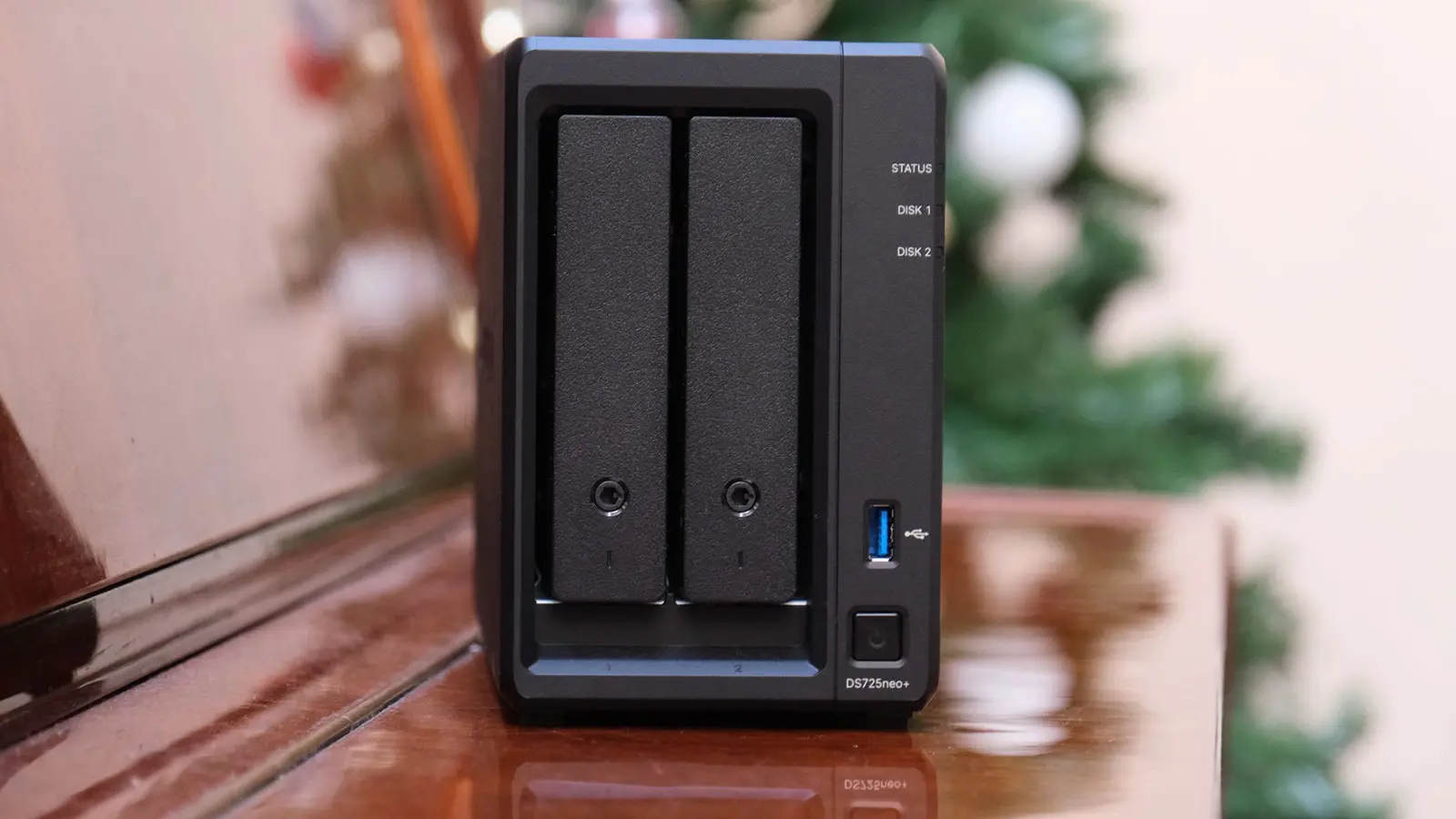
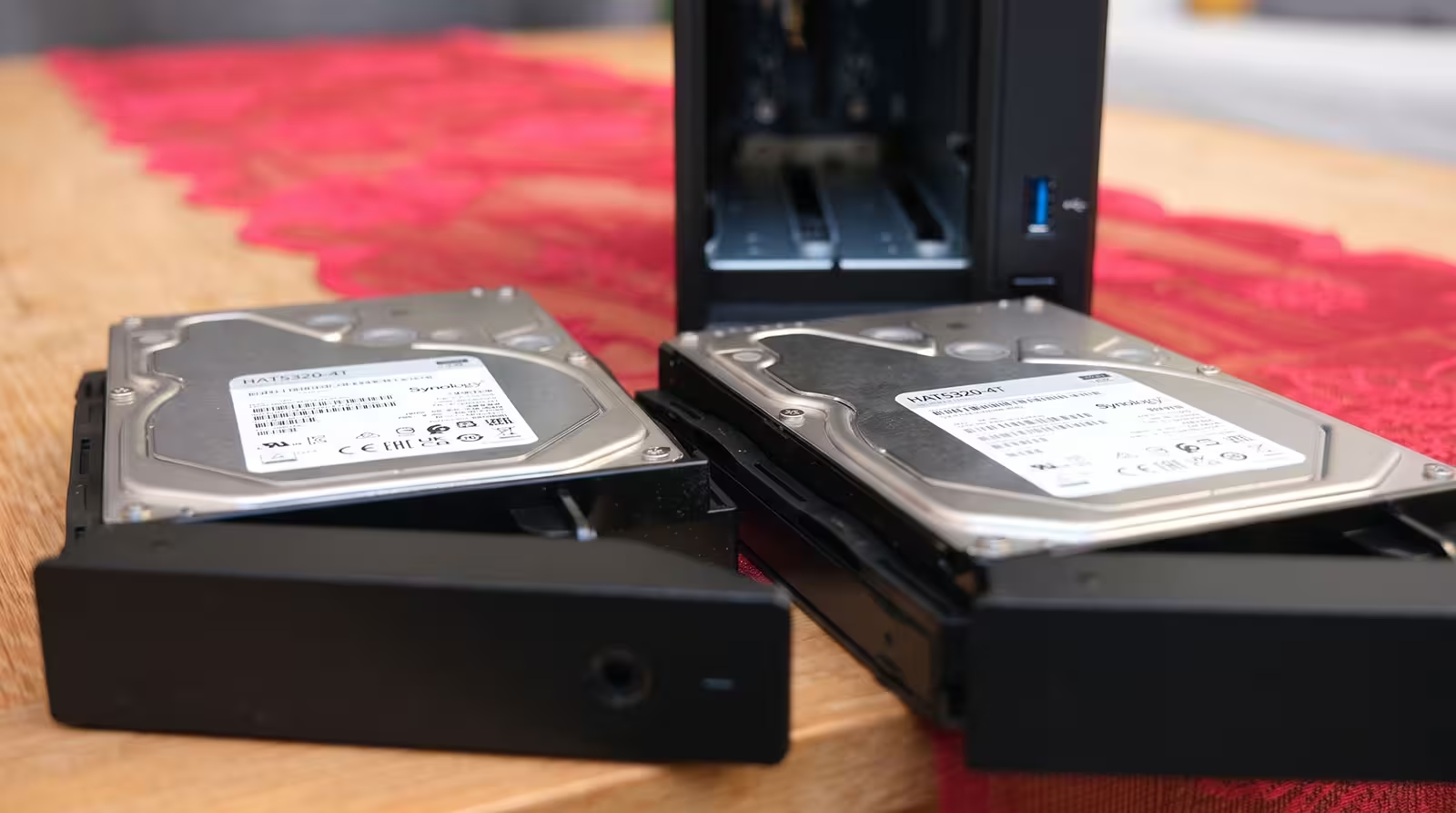
So when the Synology DS725neo+ arrived on my desk alongside two 4TB Synology enterprise drives, I decided not to just run a few synthetic tests on a bench, but to actually live with it. The DS725neo+ is the two-bay member of the new neo+ lineup—a family Synology introduced in August 2026 around a straightforward premise: the exact same Plus-series platform, equipped with Non-ECC RAM instead of ECC to bring the entry price down.
Disclosure: Synology provided this unit for review. All hands-on experiences, benchmark results, and conclusions are entirely my own, and wherever manufacturer figures are cited, they are explicitly noted.
In this review, I start with the unboxing and two unexpected networking headaches during the first 48 hours, move on to real-world speed tests, and then dive into what I consider the main reason to buy a Synology in the first place: the software. Finally, I answer the big purchasing question: should you buy the neo+ or the Plus?
Design and Build Quality: A Black Box Meant to Disappear
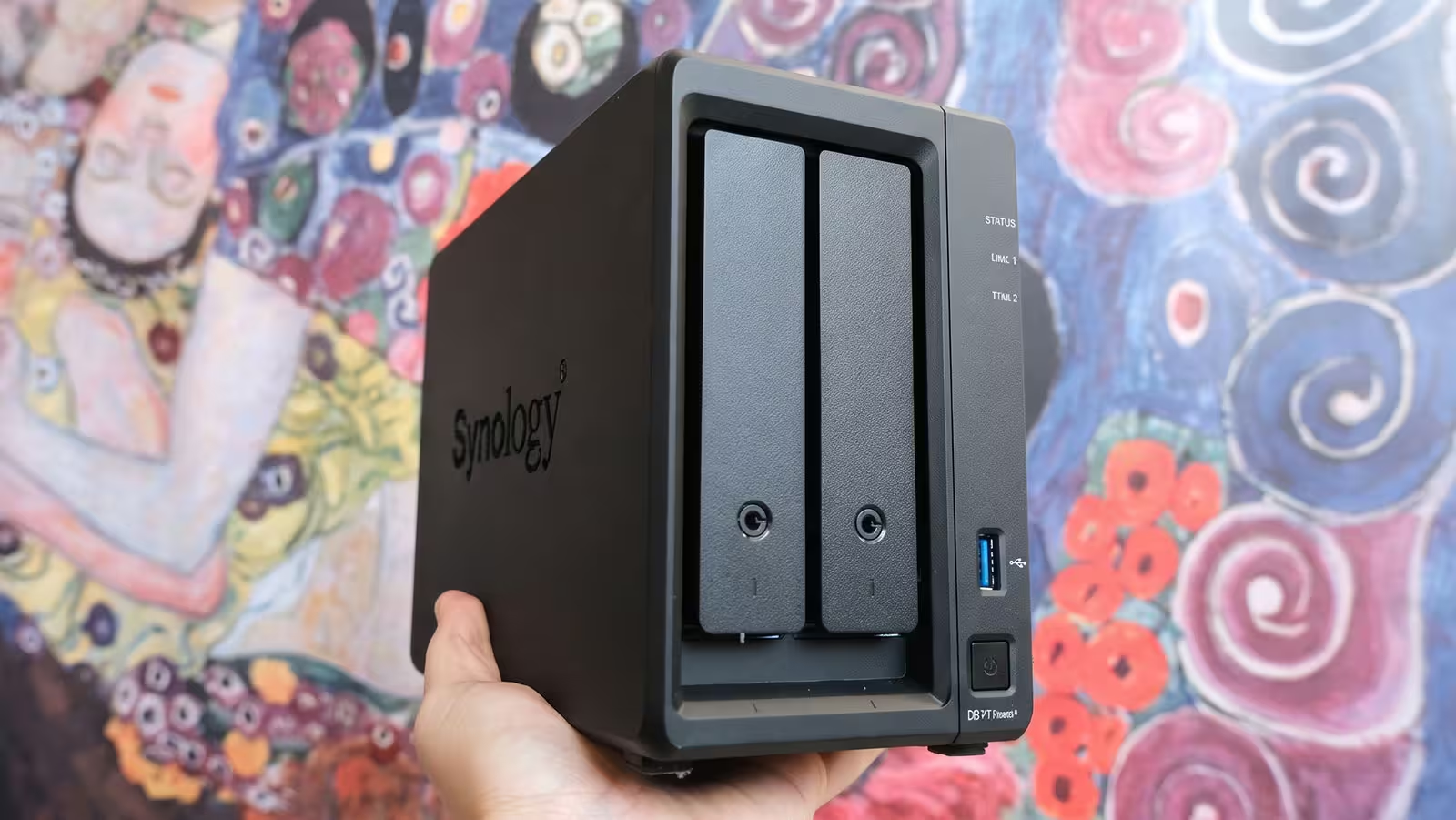
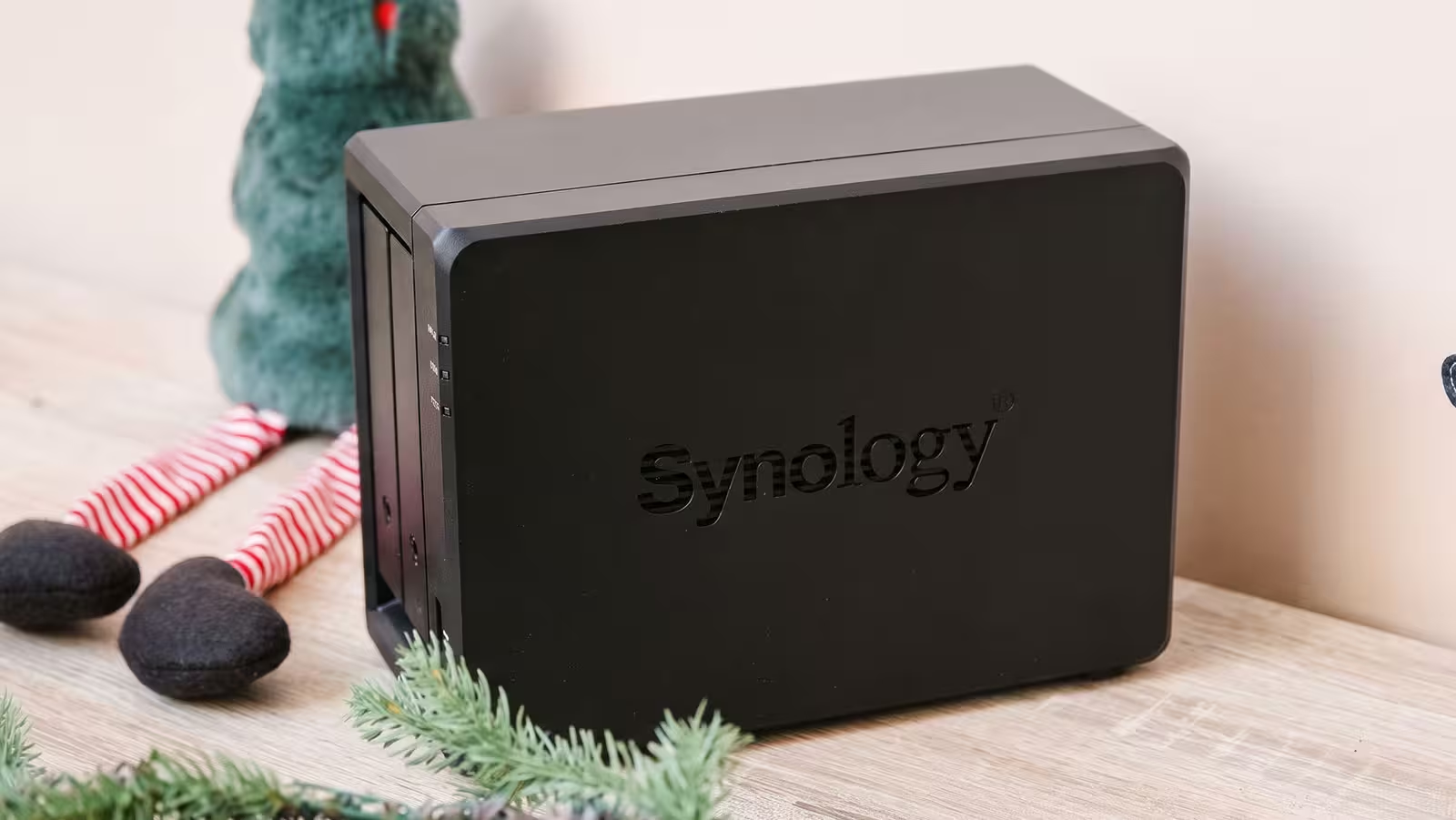
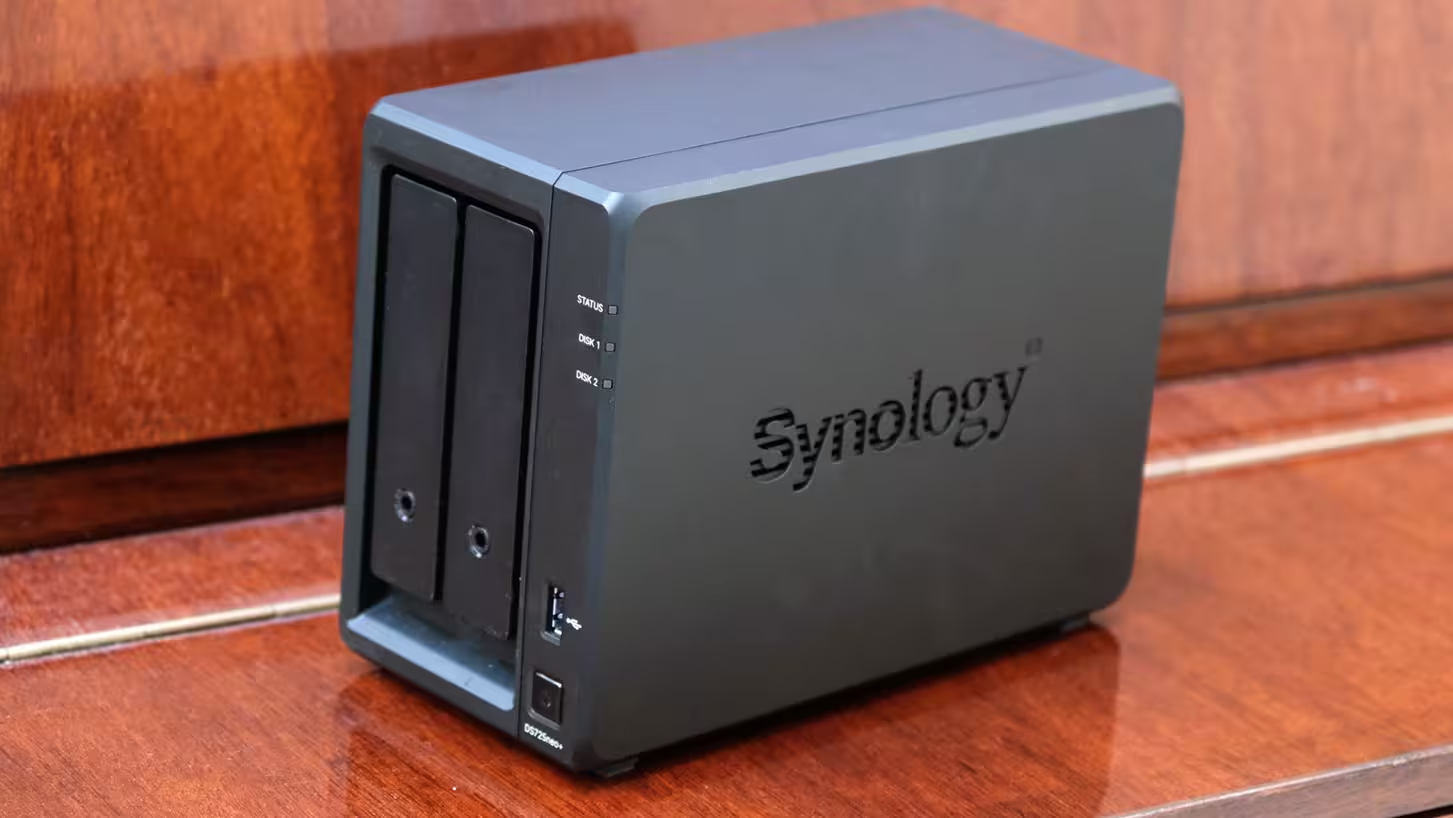
The DS725neo+ isn't a product designed to show off, and for a device meant to sit quietly next to a router or tucked away on a shelf for years, that's a virtue. The chassis is a matte-black plastic enclosure measuring 166 × 106 × 223 mm and weighing 1.51 kg (without drives). It fits effortlessly next to a monitor, on a media console, or inside a bookshelf.
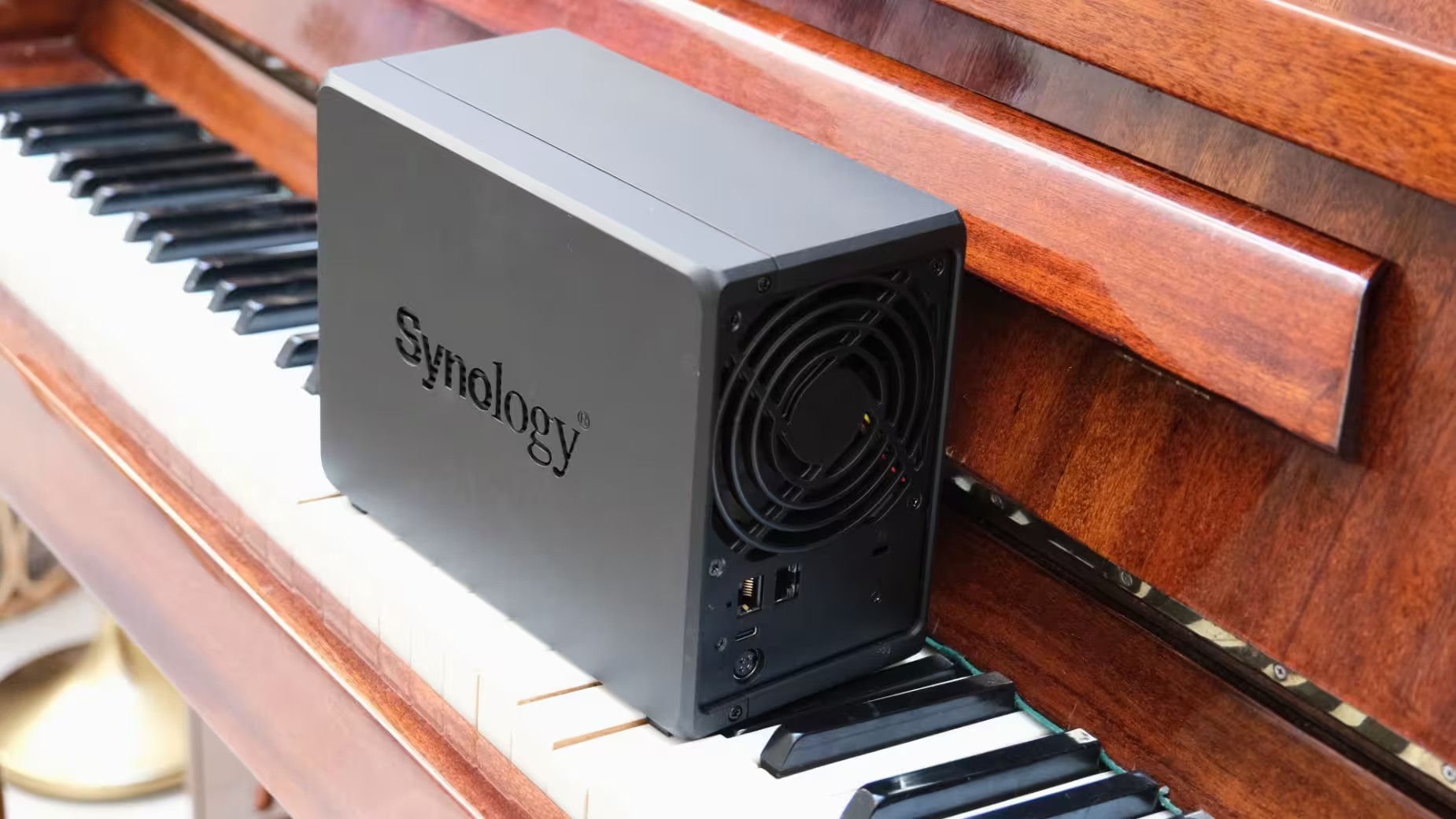
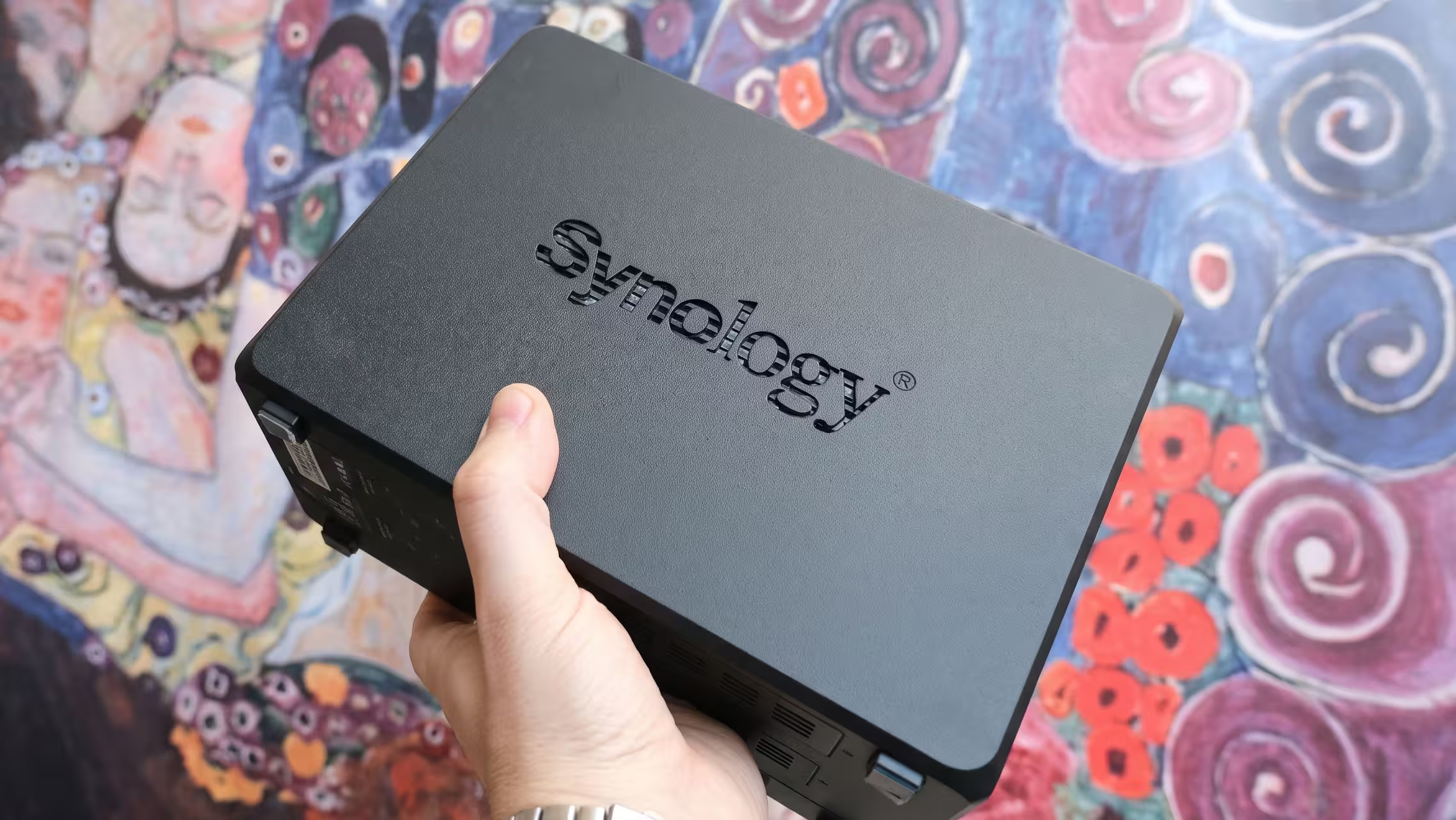
Just take one physical detail seriously: its compact footprint isn't an excuse to lock it inside a closed cabinet. The stenciled Synology logos on both sides of the chassis double as air intakes, and the 92 mm rear fan needs open clearance to exhaust warm air.
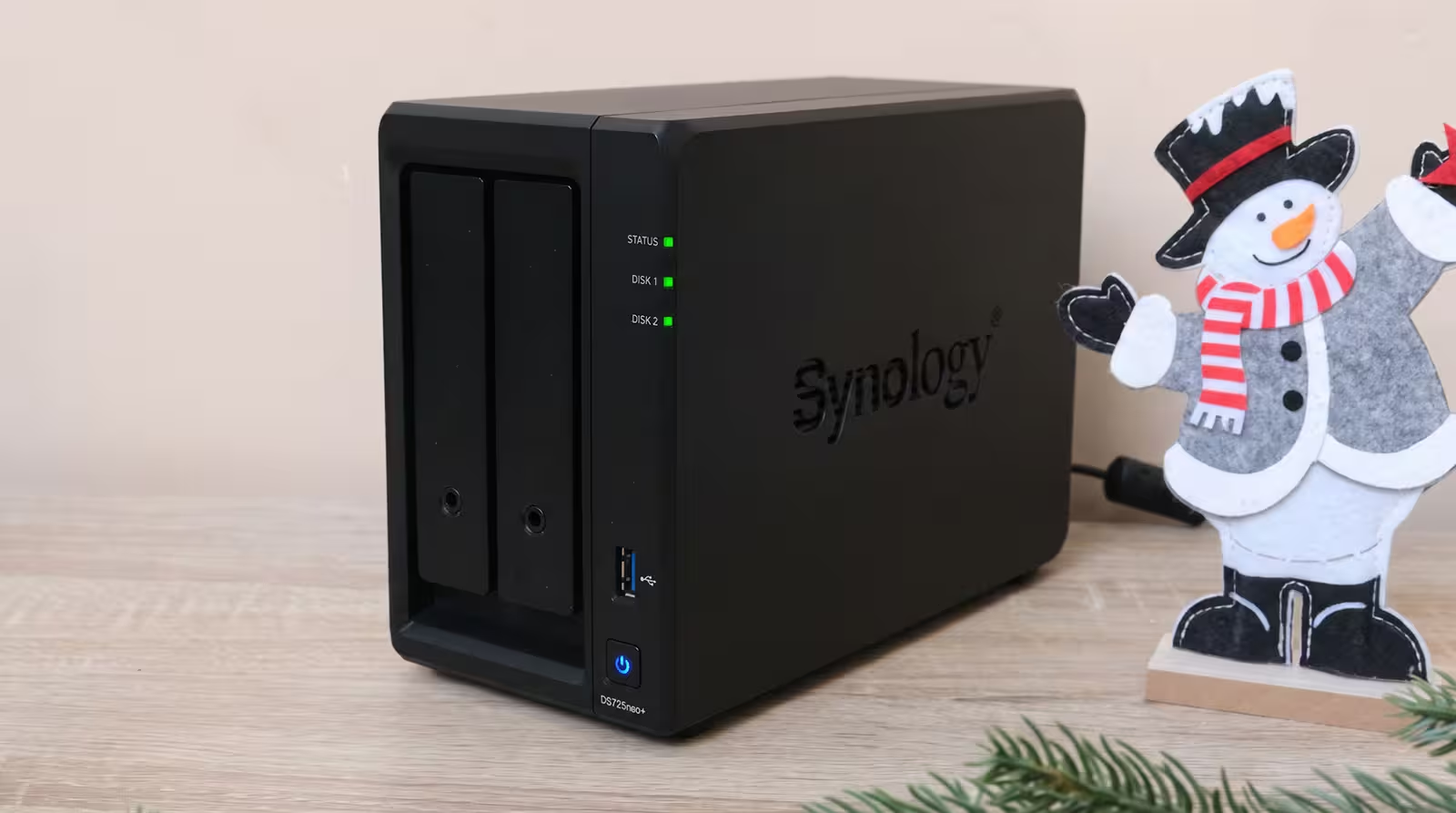
Inside the box, alongside the NAS itself, you get a 65W power adapter and power cord, two RJ-45 Ethernet cables, drive tray lock keys, and mounting screws for 2.5-inch drives. All you need to get started are the hard drives.
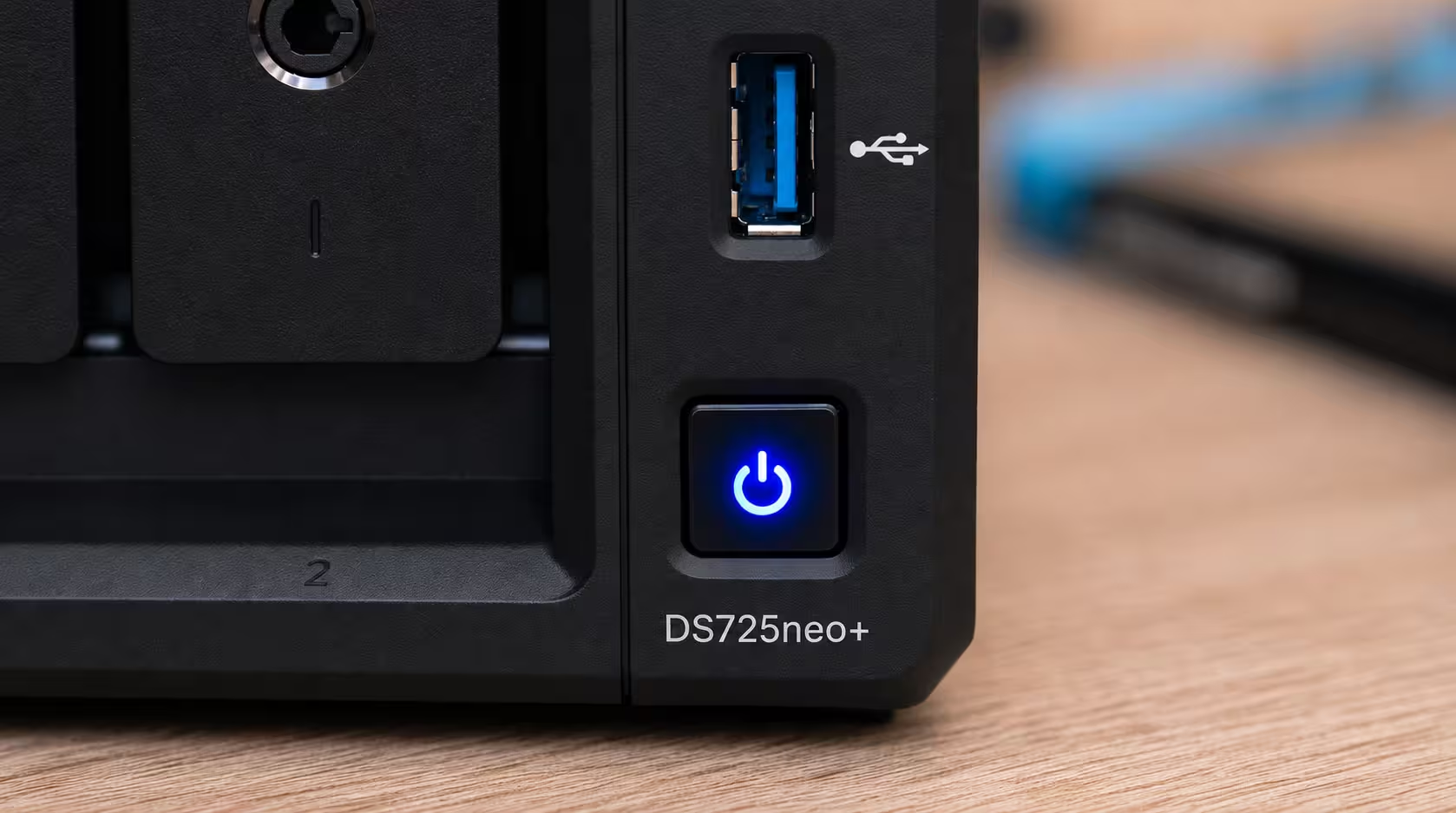
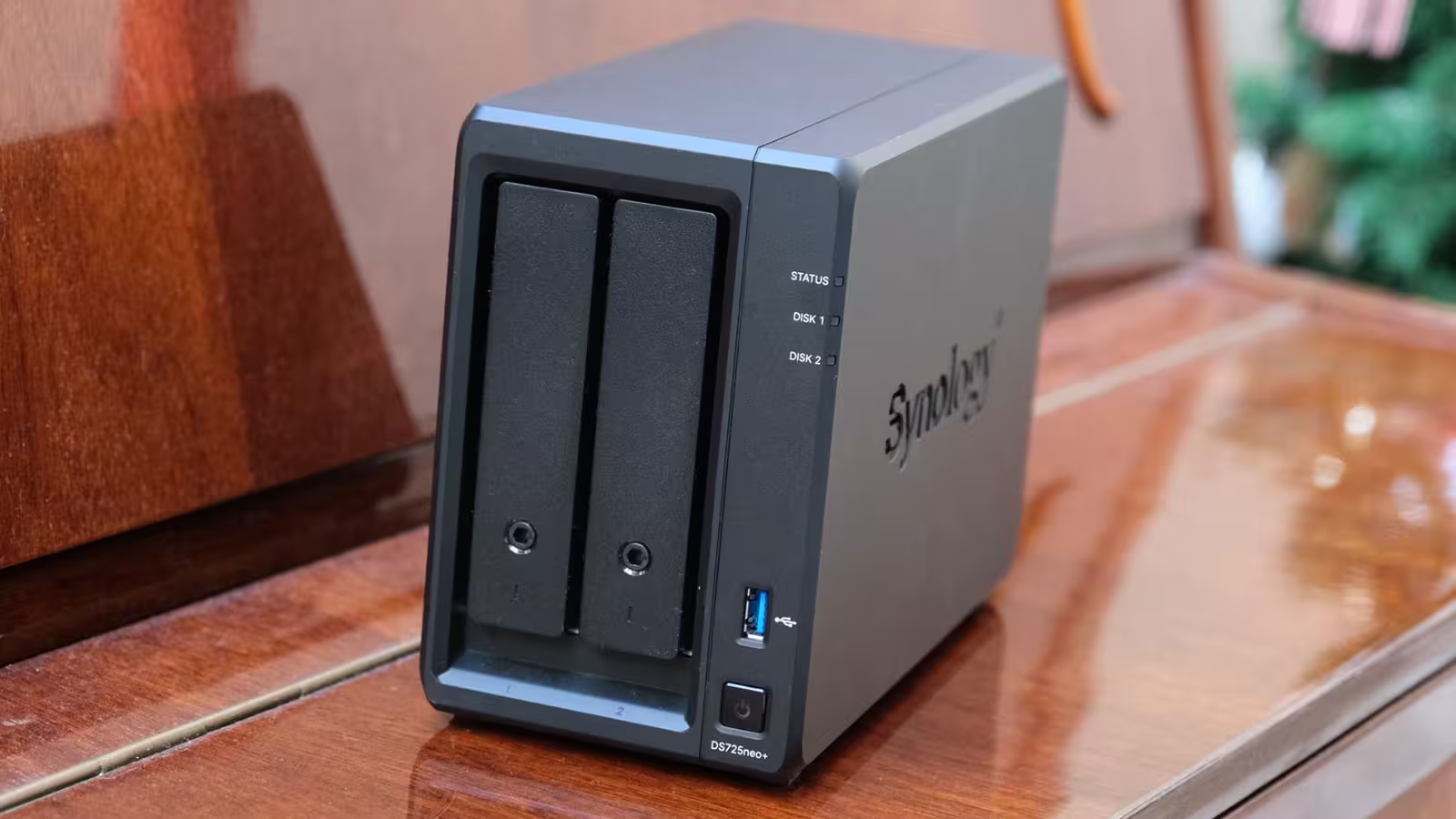
Up front, you'll find the two drive bays, the power button, and status LEDs for the system, network, and individual drives. A feature I appreciated on the very first night is the ability to dim these LEDs or put them on an automated schedule inside the software. In an office, indicator lights barely register, but when the unit sits in a room darkened for movie night, a few bright LEDs are far more distracting than you might think.
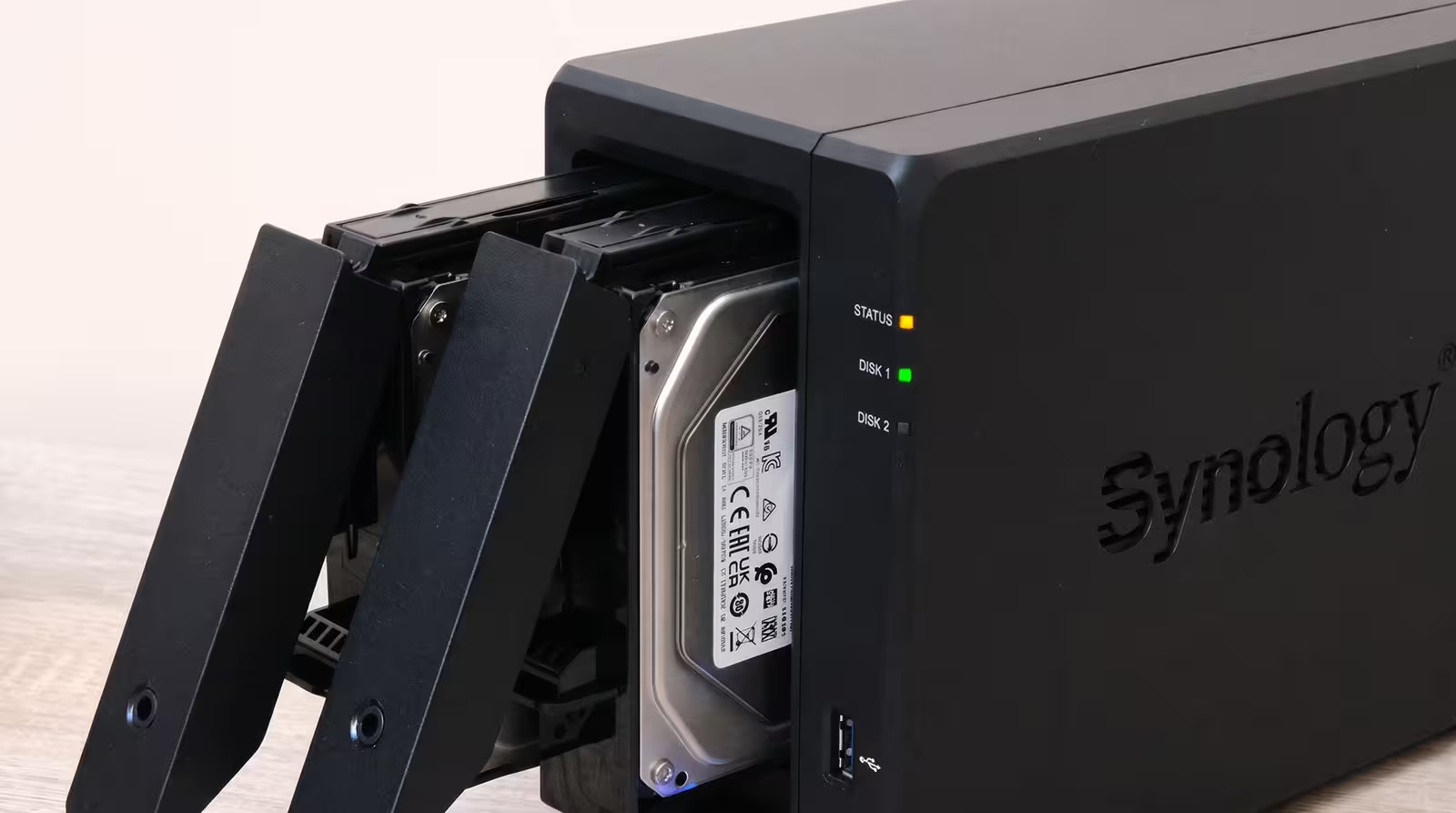
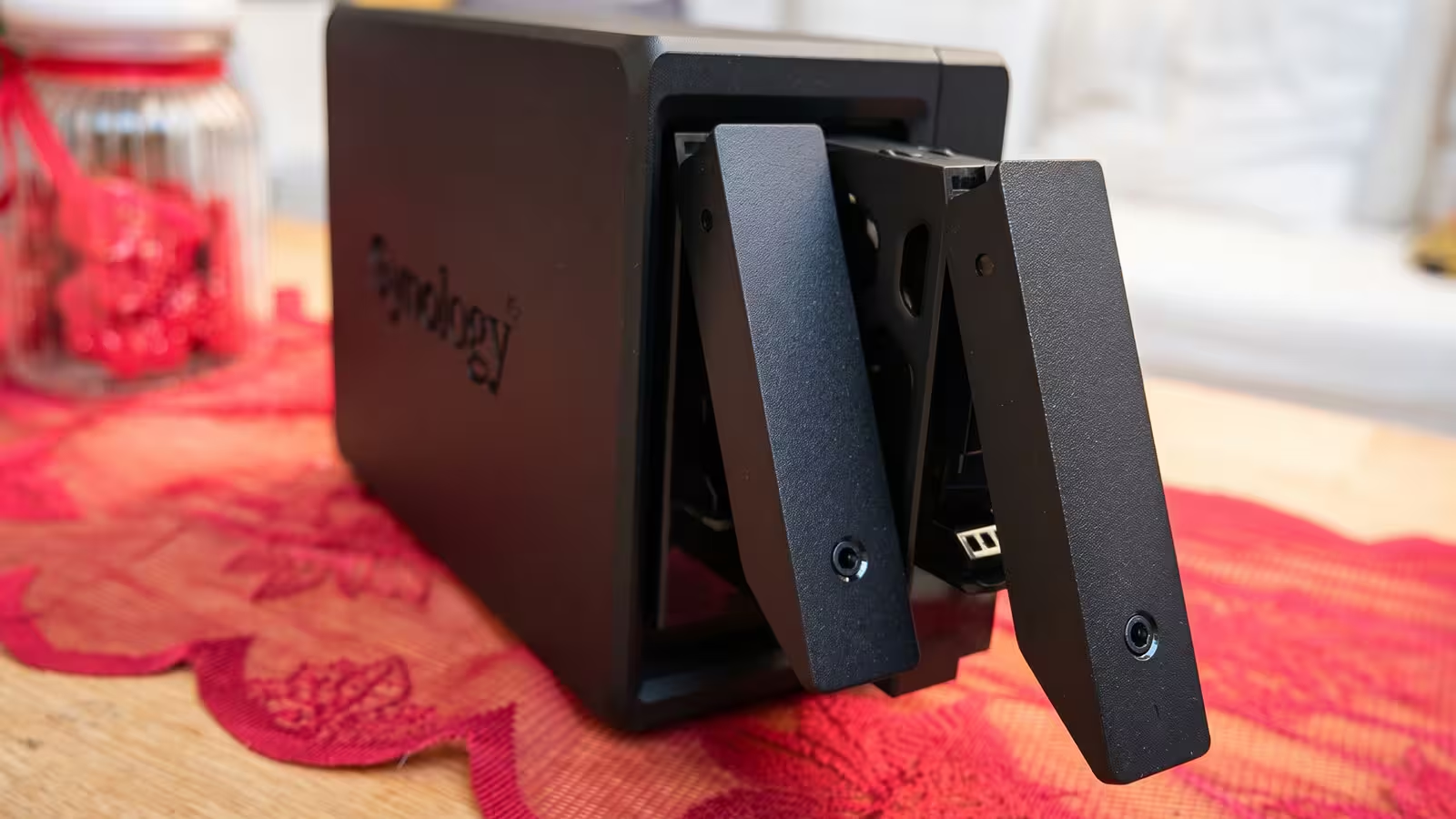
The drive trays pop out by pressing the top release latch and require zero tools for 3.5-inch drives—you simply lay the drive into the tray and snap the side fastening strips into place. Installing my two 4TB drives took less than two minutes. Both bays support hot-swapping, meaning if a drive fails down the road, you can replace it without powering down the system.
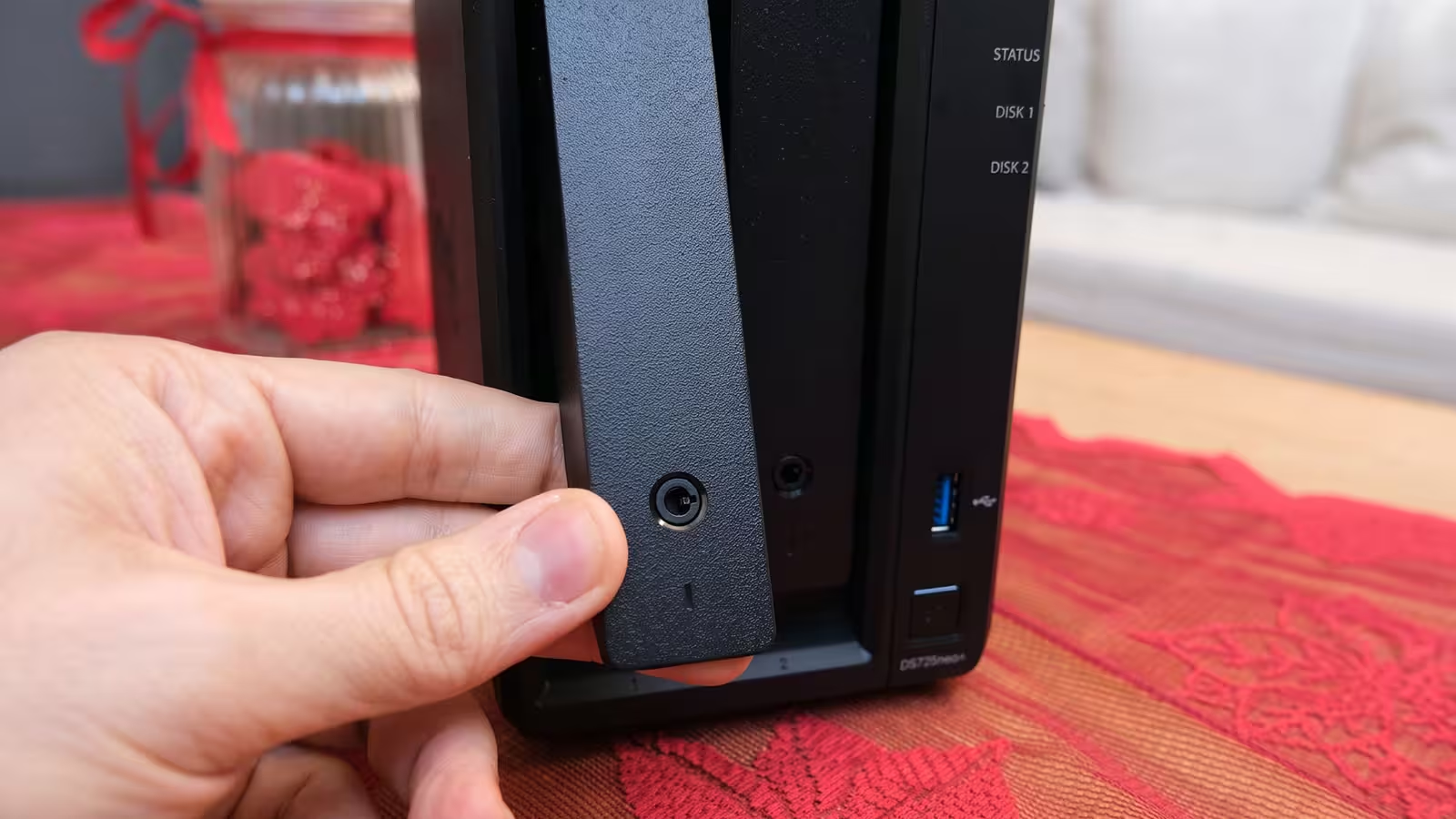
That physical simplicity matters because many first-time NAS buyers have never built a PC. The hardware assembly isn't complicated at all. The complexity, as I found out shortly after, is waiting somewhere else: the network.
Hardware: The Exact Same Plus, Minus Three Letters
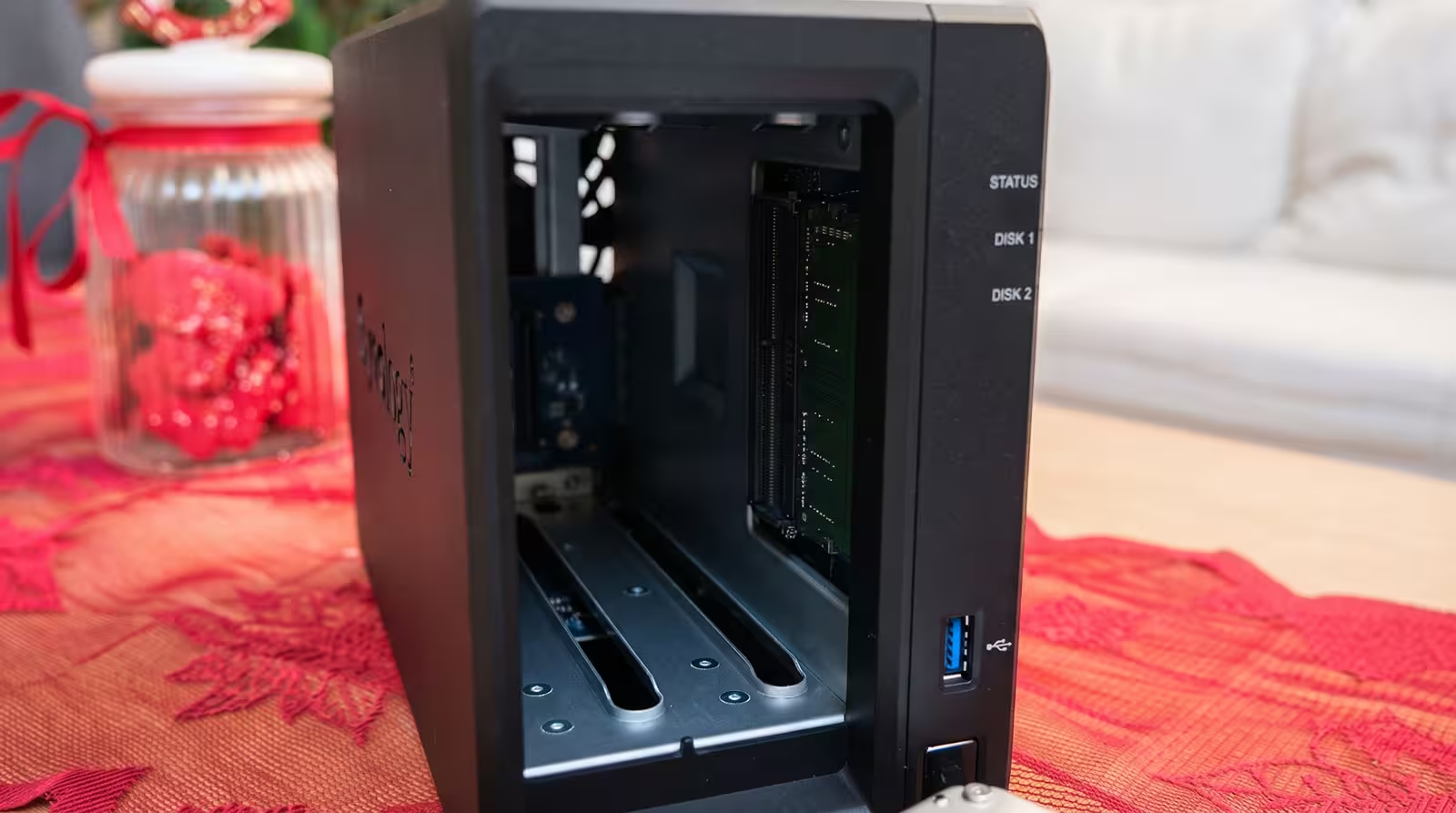
At the heart of the DS725neo+ sits an AMD Ryzen R1600 processor—a dual-core, four-thread chip with a 2.6 GHz base clock, a 3.1 GHz boost clock, and AES-NI hardware encryption support. It comes paired with 4GB of DDR4 Non-ECC RAM across two SODIMM slots that support up to 32GB in total. These are the exact same specifications as the DS725+, with one sole exception: the standard Plus model ships with ECC memory. I'll return to what that distinction means in practice in the comparison section below.
Component | Synology DS725neo+ Specifications |
|---|---|
Processor | AMD Ryzen R1600 (2 cores / 4 threads, 2.6 to 3.1 GHz) |
Memory | 4GB DDR4 Non-ECC SODIMM (2 slots, expandable up to 32GB) |
Drive Bays | 2 × 3.5" SATA HDD or 2.5" SATA SSD (Hot-swappable) |
M.2 Slots | 2 × M.2 2280 NVMe |
Network | 1 × 2.5GbE RJ-45, 1 × 1GbE RJ-45 |
USB | 1 × USB 3.2 Gen 1 |
Expansion | 1 × Expansion USB-C port (for DX525, up to 7 bays total) |
Cooling | 1 × 92 mm fan (Quiet, Cool, and Full-Speed modes) |
Dimensions & Weight | 166 × 106 × 223 mm, 1.51 kg (excluding drives) |
Warranty | 3 years (extendable to 5 years in select markets) |
This hardware package is plenty for file sharing, photo management, backups, and running a few lightweight services, but we aren't looking at an unlimited server. Two processor cores and 4GB of RAM aren't built to run multiple heavy virtual machines simultaneously; if that's on your roadmap, budget for a RAM upgrade right away or step up to a quad-core model.
When Does the 2.5GbE Port Actually Matter? The 2.5GbE port is the headline hardware upgrade here, offering two-and-a-half times the bandwidth of standard Gigabit Ethernet. However, network speed is always dictated by the slowest link in the chain. If your router or switch is Gigabit-only, or if you connect over Wi-Fi like I do in part of my home, that port won't perform miracles on its own. To unlock its full potential, the entire signal path—from the NAS through the switch to your PC's network adapter—needs to be 2.5GbE.
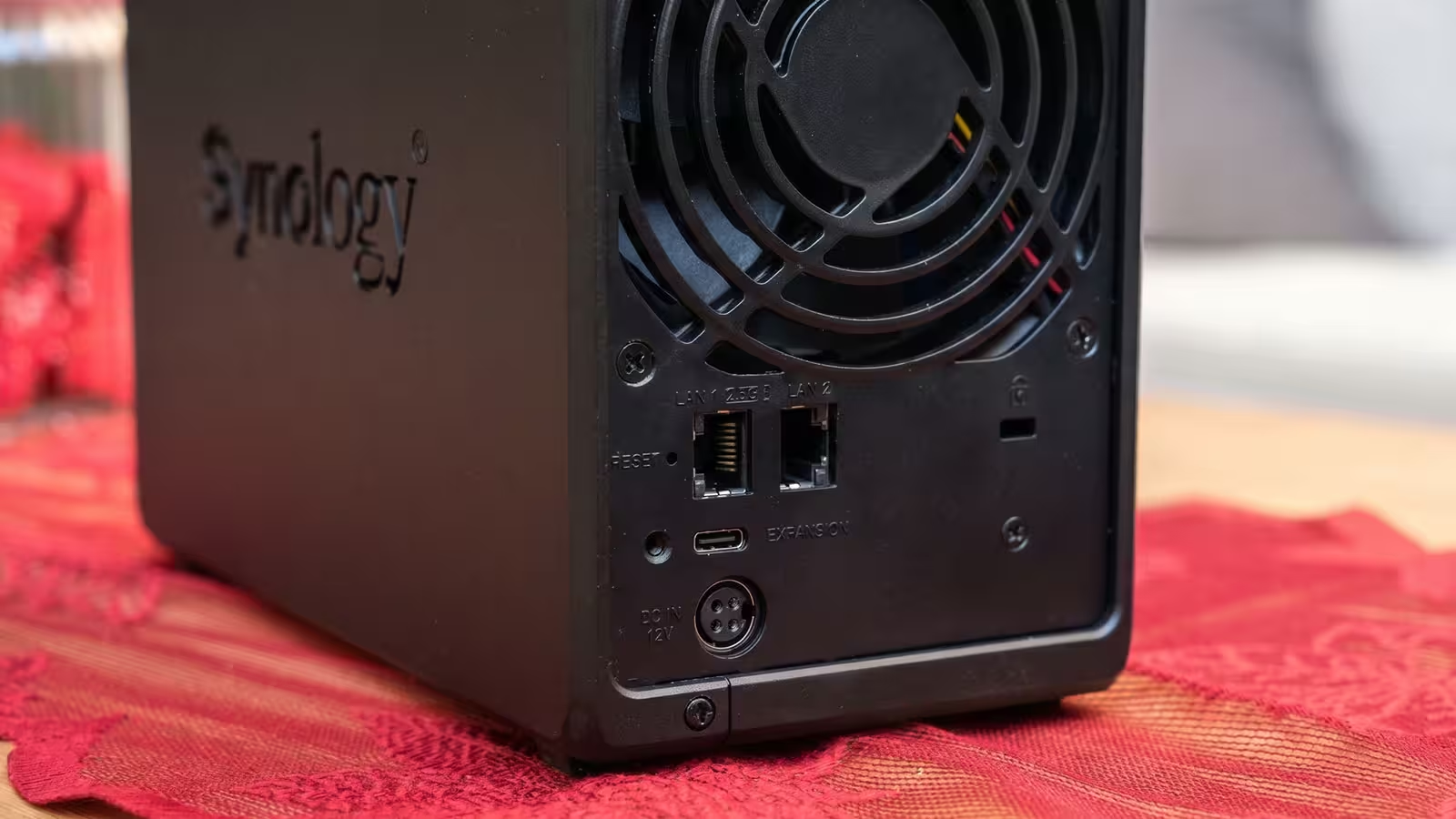
The secondary 1GbE port is there for traffic segregation or network failover; don't expect plugging in two cables to automatically double the transfer speed of a single file. One important caveat for power users: this chassis lacks a PCIe expansion slot, so unlike the older DS723+, there is no upgrade path to 10GbE networking. The network ceiling on this unit is 2.5GbE.
M.2 Slots: Extra Flexibility, Not Guaranteed Speed On the underside of the chassis, two small covers give you tool-free access to dual M.2 2280 NVMe slots. You can use these slots either as an SSD cache or to create a dedicated all-flash storage pool without occupying the two main drive bays.
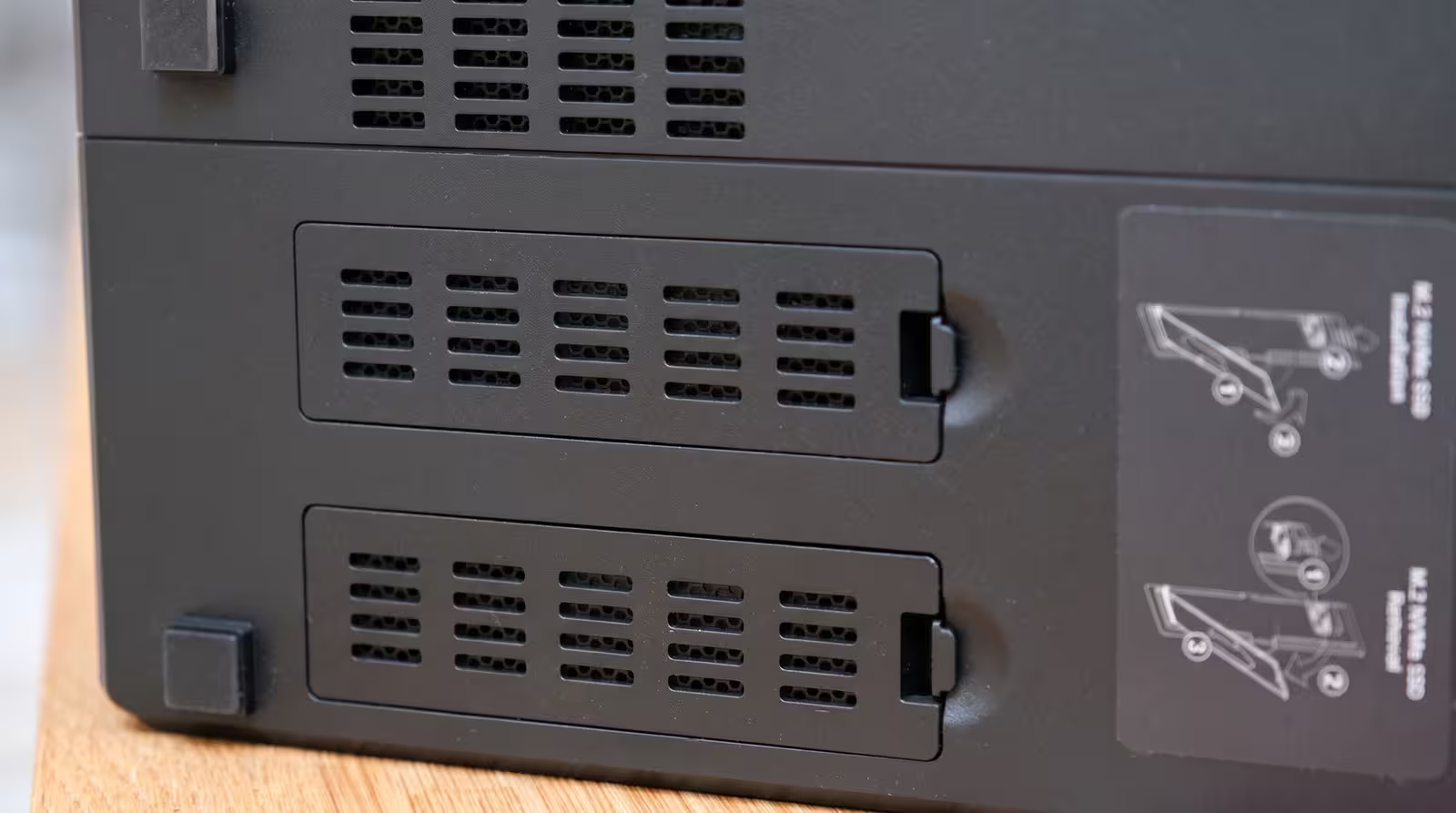 | 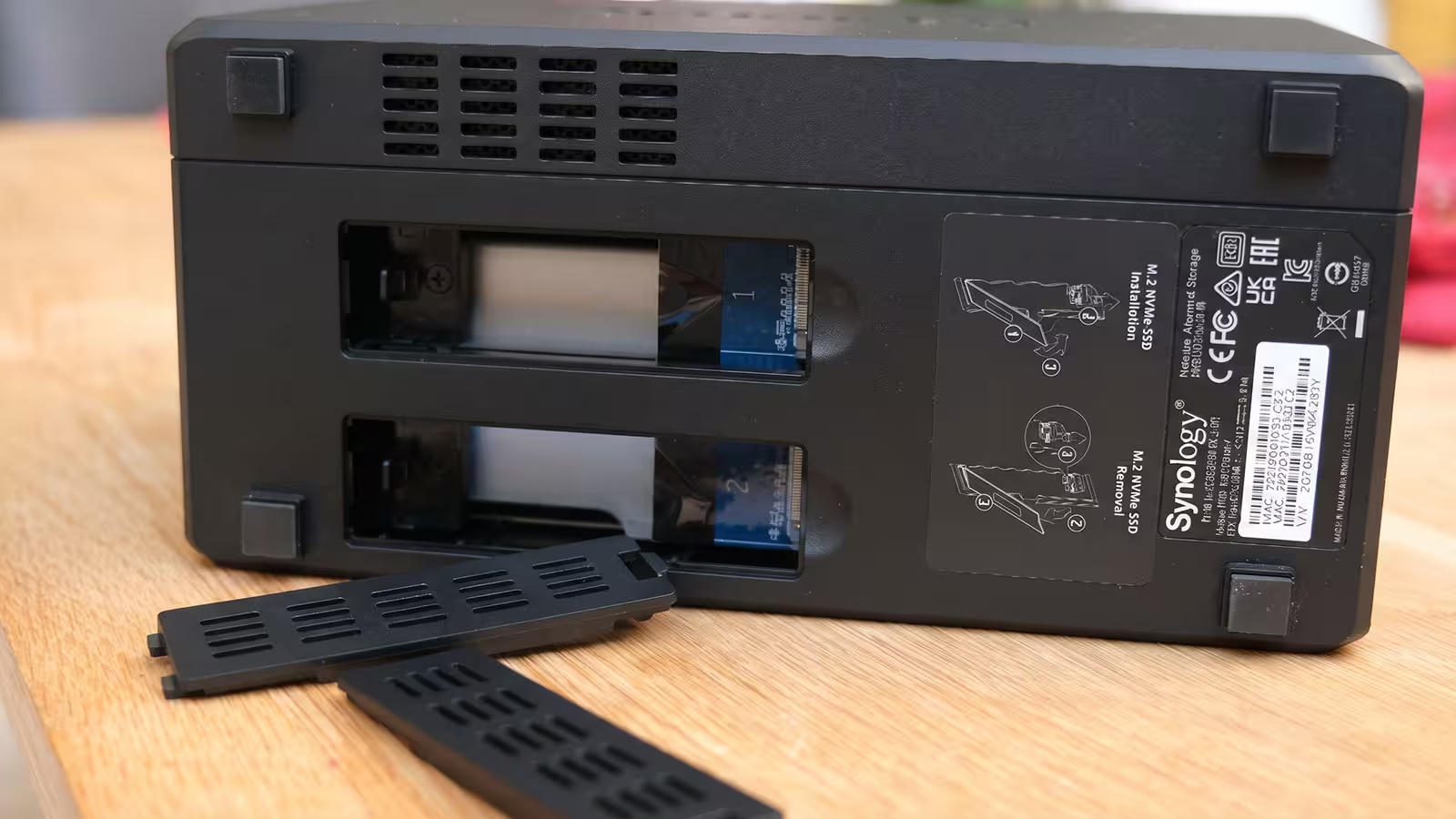 |
Keep two things in mind before buying NVMe drives. First, SSD caching primarily accelerates repetitive, random workloads; if your daily routine consists of copying large video files and streaming movies, upgrading your network infrastructure will yield a much more noticeable difference. Second, Synology explicitly notes on its spec sheet that full functionality is only guaranteed for drives on its official compatibility list. While DSM 7.3 removed third-party drive restrictions on 2025 Plus-series models for 3.5-inch HDDs and 2.5-inch SATA SSDs, creating an M.2 storage pool or cache still requires validated NVMe SSDs. I tested the unit exclusively with Synology's own drives; if you plan to buy third-party storage, check Synology's compatibility list for this exact model first.
Expansion via DX525 and External Ports The USB-C port on the rear panel is wired exclusively for Synology's DX525 expansion unit; you cannot use it to plug the NAS into a computer like an external drive, nor does it act as a general-purpose USB-C port. Adding a DX525 gives you five extra bays for a total of seven—up to 168TB of raw capacity using 24TB drives, according to Synology. Remember that raw capacity differs from usable space depending on your RAID configuration, and the combined cost of the expansion unit plus extra drives isn't trivial.
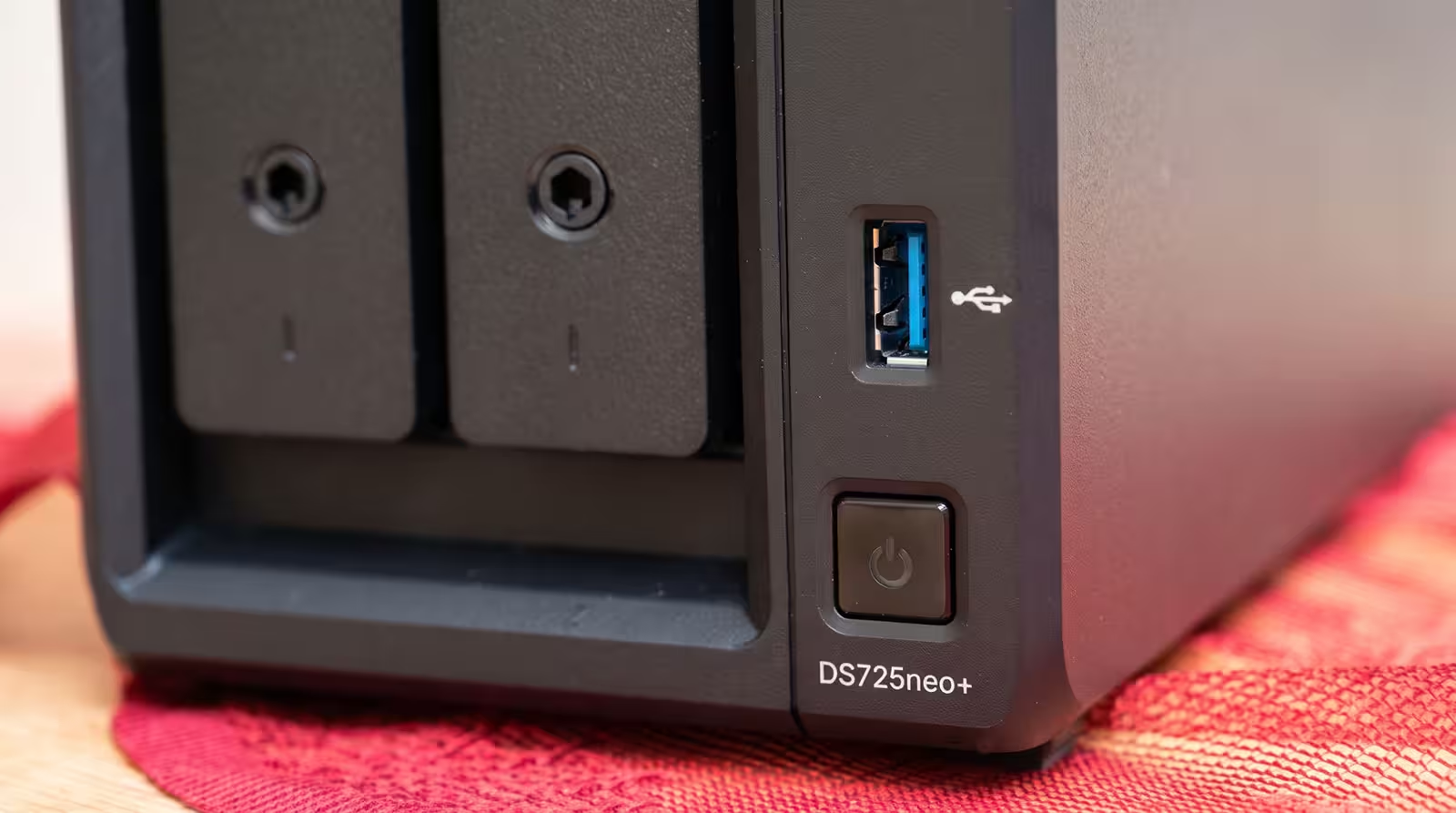
The single USB 3.2 Gen 1 port on the front handles external hard drives (for local backups), flash drives, or a UPS communication cable. Having only one USB port is stingy; if you use a UPS and also want to back up to an external USB drive, you'll find yourself swapping cables.
Noise and Power Consumption: Quiet, Not Silent
Synology rates the unit's noise level at 17.9 dB(A), measured in an idle state with Synology drives from one meter away. While I didn't have lab acoustics equipment to verify that figure independently, I can share my real-world experience: sitting just one meter from my desk, I couldn't hear the cooling fan at all, even under processing load.
Still, I prefer to call it "quiet" rather than "silent." Mechanical enterprise hard drives make their own unmistakable chatter during read and write operations, which is audible in a dead-quiet room at night. The surface you place the NAS on also plays a big role in amplifying or dampening drive vibrations.
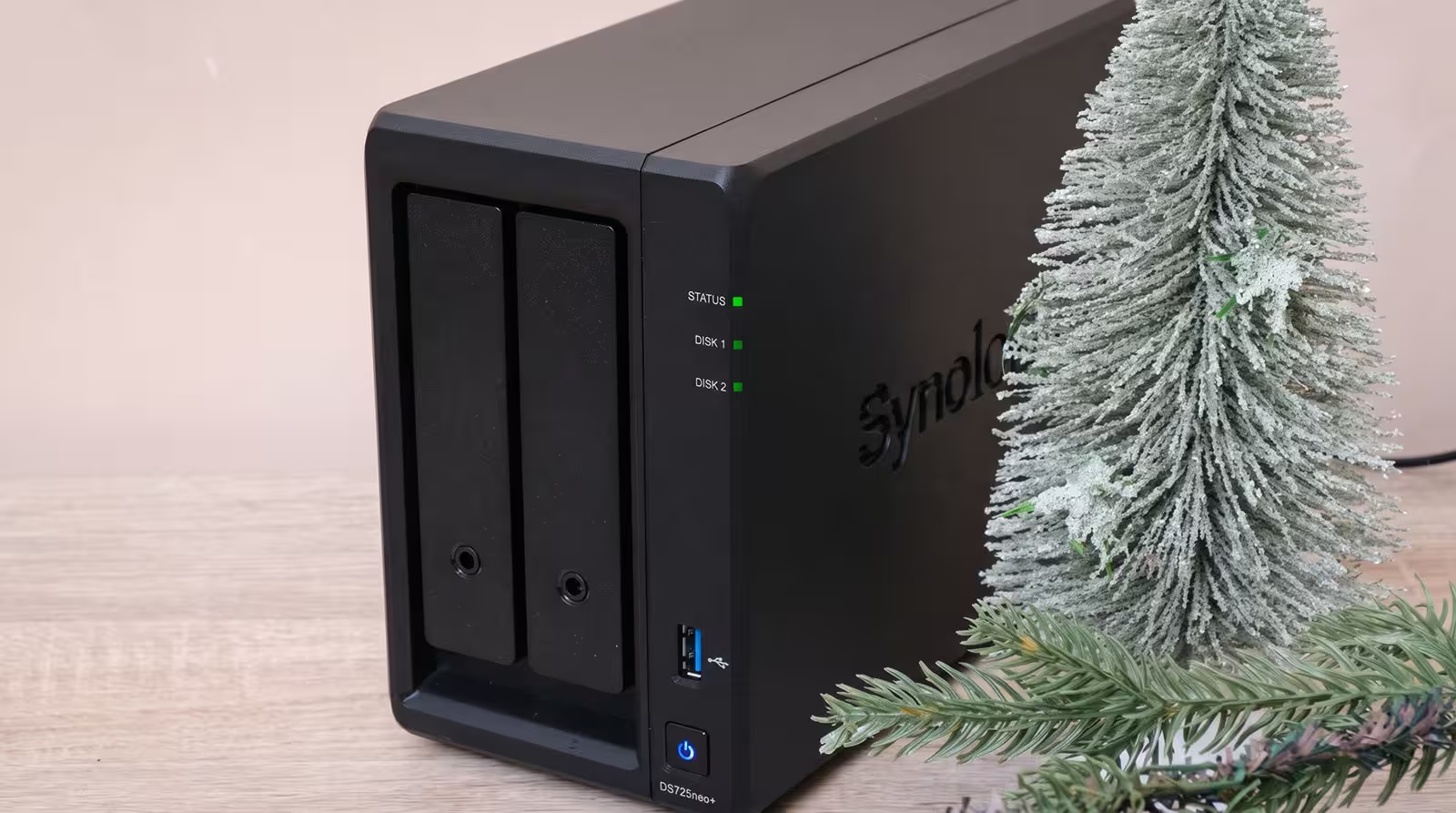
Synology quotes power consumption at 20.41W during drive access and 7.87W during HDD hibernation. Again, those are Synology lab figures and will vary depending on your drives and active packages. Even allowing for a margin of error, that's remarkably reasonable for a box that stays on for long hours—roughly comparable to an energy-saving lightbulb.
I also use the built-in power schedule: the unit powers down every night at 12:30 AM and boots back up at 8:30 AM. If you set up a power schedule, make sure you coordinate it with your backup tasks—you can't shut the NAS down at midnight and still expect your phone photos to back up overnight. That seemingly harmless power schedule also handed me a surprise on the morning of day two, which brings us to the setup experience.
Setup Experience: What the Brochures Don't Tell You
Most quick-start guides tell you that setting up a NAS comes down to plugging in an Ethernet cable and typing an address into your browser. If both the NAS and your computer are plugged into the same router, that's mostly true. I took a slightly different route, however, and hit a wall twice—and both times, networking was the culprit, not the hardware.
Hurdle #1: Direct Connection to a PC My home router sits in another room away from my work desk, so for the initial setup, I plugged the NAS directly into my PC's Ethernet port. Installing the DSM operating system and creating an administrator account went smoothly. The moment the NAS rebooted to apply the settings, however, I lost contact with it. No web address would load, and the Synology Assistant desktop app threw an installation error on my Windows machine.
The reason is simple: with a direct cable connection, there is no DHCP server to hand out an IP address, so the NAS assigns itself a link-local address in the 169.254.x.x range, leaving the PC unsure where to find it. Here is the zero-software workaround that solved it:
In Windows Network Connections (
ncpa.cpl), I enabled Internet Connection Sharing (ICS) to share my PC's Wi-Fi connection with the wired Ethernet port, effectively turning my PC into a DHCP server.In Command Prompt (
cmd), I ranarp -aand scanned the table for a MAC address starting with90-09-d0—Synology's hardware prefix.Next to that MAC address sat two IPs: one in the
169.254.x.xrange and another (192.168.137.106) assigned by Windows ICS. Typing that second IP followed by port5000into my browser brought the DSM management screen right up.
The takeaway: a direct connection works, but it isn't the smoothest way to start. If you're new to NAS devices, set the unit up next to your router on day one and save yourself the headache.
Hurdle #2: The Mapped Z: Drive That Refused to Open the Next Morning After moving the NAS next to the router, I mapped its main folder as drive Z: in Windows (\\192.168.0.100\home). Accessing files on the NAS now felt identical to opening a local folder on my PC—until the next morning.
The unit had powered down at midnight and booted back up at 8:30 AM on schedule. When I clicked on the Z: drive, Windows greeted me with an error: The local device name is already in use. A quick network check revealed that when the NAS booted back up, the router had assigned it 192.168.0.101 instead of .100, while Windows was still looking for yesterday's address.
For a quick fix, I cleared the stuck mapping via Command Prompt (net use Z: /delete /y) and remapped it. For a permanent fix, I went into DSM under Control Panel > Network > Network Interface and switched the IPv4 configuration from automatic (DHCP) to Manual so the IP would never drift again. Since then, the NAS shuts down every night, boots up every morning, and drive Z: works without a hitch.
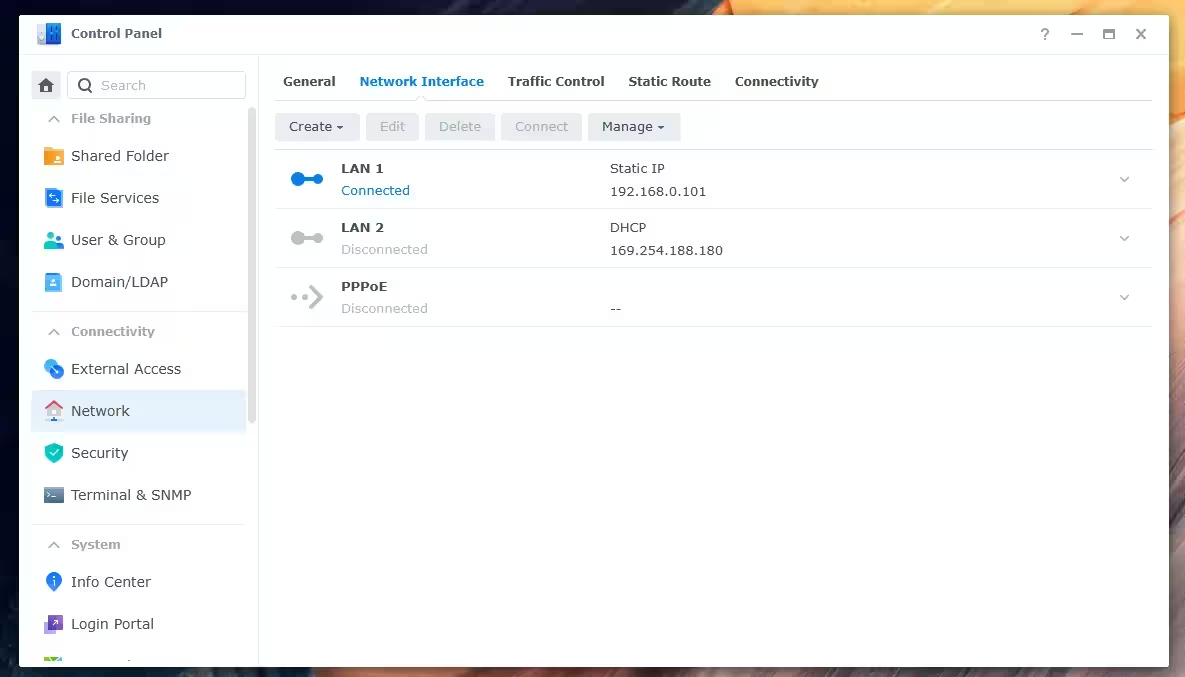
Two tips so you never run into this: lock down your NAS IP address on day one, and if your router allows it, set up a DHCP Reservation inside the router rather than a manual static IP inside DSM. The end result is the same, but you eliminate the risk of IP conflicts with other devices on your network.
Storage Layout: The Second Drive Is Not a Backup
I configured the two 4TB drives in SHR (Synology Hybrid RAID, equivalent to RAID 1 in a two-bay setup) using the Btrfs file system. In this mode, the second drive acts as a real-time mirror of the first. Out of 8TB of raw capacity, you get roughly 4TB of nominal storage (and slightly less after system formatting). In exchange, if one drive suffers a hardware failure, not a single file is lost; you swap in a new drive and let the array rebuild.
Here, however, is where the biggest misconception around NAS ownership takes hold: a mirrored second drive is not a backup. If you accidentally delete a file, it vanishes from both drives simultaneously. If the unit is stolen or fried by a power surge, both drives sitting inside the same chassis go down together.
It helps to think of data protection in three distinct layers:
Redundancy (RAID/SHR): Protects uptime when a physical disk fails.
Versioning and Snapshots: Protects against accidental deletion, bad edits, and ransomware.
Independent Backups: Copies on a separate drive or off-site location for when the NAS itself is lost.
The DS725neo+ provides tools for all three layers, which I cover in the backup section. Just remember right from the start that choosing Btrfs doesn't automatically protect your files; Btrfs merely provides the foundation for snapshots—enabling and scheduling them is up to you.
Everyday Living: From the Work Desk to the Home Theater
Once the network settled down, the DS725neo+ naturally wove itself into three parts of my daily routine.
1. One Unified Archive for Desktop and Laptop I split my workday between a desktop PC and a laptop. Previously, shuttling video files between the two via external drives wasted time and inevitably spawned duplicate versions and scattered folders. Now, drive Z: is mapped on both machines, pointing to a single source of truth. A file saved from my laptop appears instantaneously on my desktop, and I no longer need to keep massive project archives eating up local SSD space on both computers.
One realistic boundary is worth drawing here: while this setup is fantastic for archiving and file handoffs, editing a heavy 4K video timeline directly off a network drive over Wi-Fi isn't practical. For heavy video production, the sensible workflow is keeping active working files on your computer's internal NVMe SSD while using the NAS for raw footage storage, rendered exports, and long-term archiving.
2. Streaming Movies to the TV and Laser Projector The most enjoyable upgrade at home has been turning the unit into a dedicated media server. I moved my entire movie and series library onto the NAS—no more USB thumb drives, no leaving a PC running in the other room, and no HDMI cables snaking across the floor. Whether we're watching on the living room TV or firing up the 4K laser projector at night, movies stream seamlessly from this little black box via Plex and SMB network shares. Every high-bitrate 4K file I threw at it played back smoothly without buffering, and in a quiet room, the NAS never broke the immersion.
However, "4K playback" doesn't tell the whole story on its own, and this is where the unit's biggest hardware limitation surfaces: the AMD Ryzen R1600 has no integrated GPU. As long as your client device (Smart TV, media box, or projector) supports the file format natively via Direct Play, the NAS simply serves the data over the network and everything runs effortlessly. If live video transcoding is required—say, for an older TV, unsupported audio/subtitle tracks, or streaming remotely over a slow connection—the entire workload falls onto the two CPU cores, which simply can't keep up with 4K video. If hardware transcoding is a core requirement for your media server, look elsewhere.
3. Automated Photo Backups for Our Phones Around the house, this turned out to be the most tangible quality-of-life improvement. We installed the Synology Photos app on both my phone and my wife's phone. Now, whenever we walk through the door and our phones hop onto the home Wi-Fi, new photos and videos automatically back up to the NAS in original quality. We both have access to a shared family space, so we no longer need to send photos back and forth over messaging apps after a family outing.
Facial recognition and subject grouping run locally on the NAS itself, meaning zero personal photos are uploaded to external cloud servers for AI processing—a major plus for family privacy. Timeline and map views are generated automatically from the image metadata.
Two practical tips from daily use: first, mobile operating systems aggressively throttle background tasks to save battery, so during your very first backup of thousands of existing photos, leave the app open on screen until it finishes. Second, once you delete photos off your phone to free up space, the NAS stops being a "backup" and becomes the only copy. For irreplaceable family memories, backing up the NAS itself is no longer optional.
Benchmarks: How Fast Is It in the Real World?
To get an accurate picture of what the DS725neo+ can do when paired with two 4TB Synology enterprise drives (HAT5320-4T), I ran two separate benchmark suites: one to measure the raw internal speed of the drives inside the chassis, and another to measure real-world transfer speeds over Wi-Fi to a mapped network drive in Windows.
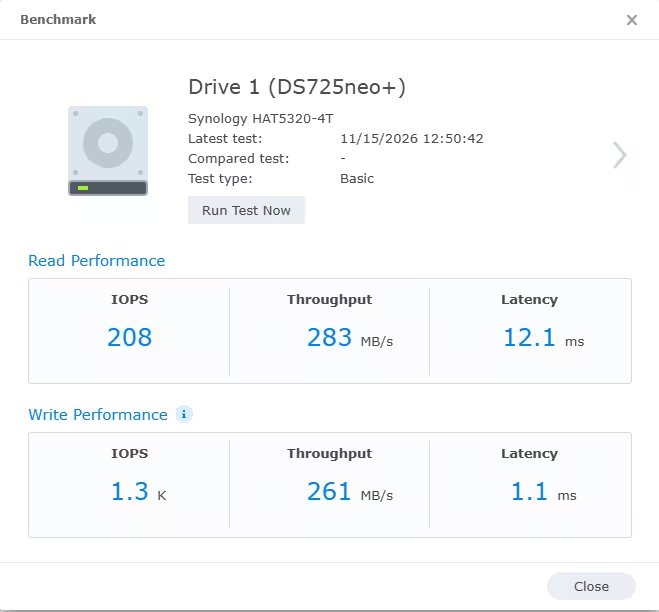
For the first test, I used DSM's built-in benchmark tool inside Storage Manager, which measures read and write performance directly across the backplane without network bottlenecks. Here, the 4TB Synology HAT5320-4T drives put on an impressive showing, hitting 283 MB/s sequential read (208 IOPS, 12.1 ms latency) and 261 MB/s sequential write (1.3K IOPS, and a razor-thin 1.1 ms latency). Those numbers confirm that the raw throughput of a single drive actually exceeds the ceiling of the unit's 2.5GbE port, meaning neither the drives nor the CPU create an internal bottleneck.
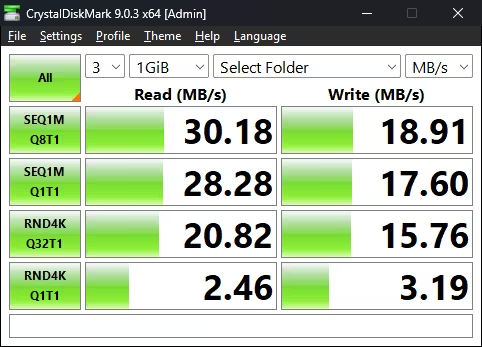
For the second test, because my NAS sits next to the router while my desktop PC connects over Wi-Fi from another room, I ran CrystalDiskMark 9.0.3 against the mapped network drive to see what a typical wireless home setup delivers through walls. With Wi-Fi acting as the primary bottleneck, sequential speeds came in at 30.18 MB/s read and 18.91 MB/s write, while random 4K performance (RND4K Q32T1) registered 20.82 MB/s read and 15.76 MB/s write.
Here is how my internal and wireless test results stack up alongside the theoretical ceiling of the unit's wired Ethernet ports:
Test Scenario | Sequential Read | Sequential Write | Read / Write Latency |
|---|---|---|---|
DSM Internal Benchmark (HAT5320-4T) | 283 MB/s | 261 MB/s | 12.1 ms / 1.1 ms |
CrystalDiskMark (Wi-Fi Connection) | 30.18 MB/s | 18.91 MB/s | Wi-Fi dependent |
Wired 1GbE Connection | ~112 MB/s | ~112 MB/s | < 2 ms |
Wired 2.5GbE Connection | ~276 MB/s | ~224 MB/s | < 2 ms |
Comparing these two tests highlights an important real-world takeaway: while the HAT5320-4T drives deliver 283 MB/s internally, even the 30 MB/s wireless connection from another room provides more than six times the bandwidth required to stream high-bitrate 4K movies without a hint of buffering. And whenever you need to move hundreds of gigabytes of raw footage at once, plugging a cable into the 2.5GbE port lets you tap into the full 276 MB/s transfer speed.
During my testing—even while the unit was simultaneously indexing new photos in Synology Photos, receiving files from my desktop, and streaming a movie—CPU utilization in DSM never crossed ~45%, and less than half of the 4GB of RAM was in use. The DSM web interface remained snappy throughout. Keep in mind that this reflects a household and solo-creator workload, and shouldn't be extrapolated to ten concurrent office users or virtual machines.
Private Cloud and File Management: Where Synology Separates Itself from a Network Drive
Up to this point, we've covered plastics, ports, and transfer speeds—none of which are the primary reason people buy a Synology. The real differentiator is DSM (DiskStation Manager), a browser-based operating system complete with multi-window multitasking, icons, and a Package Center that feels like a desktop OS and includes a full suite of first-party software with zero recurring license fees. Crucially for prospective neo+ buyers, every single software feature here is identical to what runs on the standard DS725+.
Synology Drive: A Dropbox Where the Hard Drives Live in Your House Installing Synology Drive spins up a personal cloud service akin to Google Drive or Dropbox on your own hardware, accessible via web browser, Windows and macOS desktop clients, and mobile apps. The difference between Synology Drive and the mapped Z: network folder I use at my desk comes down to offline availability: a mapped SMB drive requires a live connection to the NAS, whereas Synology Drive can keep local copies synced on your laptop and reconcile changes whenever you reconnect. The former is ideal for big media archives; the latter is built for working documents you need on the road.
Two Synology Drive features deserve a closer look:
On-demand Sync: You see the entire directory tree of your NAS inside Windows Explorer or macOS Finder, but individual files are only downloaded when you click to open them. For laptops with smaller SSDs, it's a lifesaver—though opened files and anything you pin for permanent offline access will naturally take up local disk space.
Versioning: Synology Drive can retain up to 32 historical versions of every file. Note that 32 versions does not equal 32 days; every save event can generate a new version. You usually appreciate the value of versioning the first time you accidentally overwrite an important document and roll it back in two clicks.
Collaboration and Access Control The Synology Office package lets multiple users collaboratively create and edit documents, spreadsheets, and slides right inside the browser. For straightforward team tracking, it replaces emailing attachments back and forth, though if your workflow relies on complex Excel macros or intricate Word formatting, test template compatibility before migrating completely.
System administrators can create separate accounts for every family member or colleague and define granular read/write permissions per folder. At home, that means a shared family media folder alongside private work folders for each adult; in a small studio, it means accounting can't touch production folders and vice versa. Shared folders can also be encrypted using 256-bit AES encryption—just remember that encryption isn't enabled by default, so you must turn it on deliberately and store the recovery key somewhere safe outside the NAS.
Remote Access via QuickConnect Synology's QuickConnect service lets you reach your NAS from anywhere outside your home network without paying for a static IP address or wrestling with router port forwarding. When you're traveling and suddenly need to grab a file off your server, it works effortlessly.
That said, a private cloud cannot bend the laws of internet physics. Your remote download speed is strictly capped by your home internet's upload speed, which is modest on many residential broadband plans—and if a direct peer-to-peer tunnel can't be established, traffic relays through Synology's servers, slowing things down further. The true speed advantage of a NAS over public cloud storage happens inside your home or office LAN, where multi-gigabyte folders move at local network speeds rather than internet speeds.
One vital security reminder: any server reachable from the public internet requires basic hygiene. Enforce strong passwords, enable two-factor authentication (2FA), use HTTPS, and keep DSM updated from day one. Running a private cloud means you are the chief security officer.
Multi-Site Sync: When Files Need to Be in Two Places at Once
Remote access via QuickConnect is fine for grabbing an occasional document, but it falls flat when two locations need to collaborate on large files daily. Imagine a creative studio with two offices, or a content creator who splits production between a home studio and a team office. If all the data lives on a single NAS in one location, the remote person is constantly bottlenecked by internet upload speeds every time they open a file.
Synology offers two distinct solutions for this workflow:
Synology Drive ShareSync: Synchronizes selected folders between two or more Synology NAS units across different locations (one-way or two-way). Each site works directly off its local NAS at full LAN speeds, while changes sync silently in the background over the internet.
Hybrid Share: Takes a cloud-centric route by storing the primary dataset in Synology C2 cloud storage while each local NAS caches only the actively used files. For multi-branch teams, you no longer need massive hard drive arrays duplicated at every location—though the trade-off is financial, as Hybrid Share requires a paid C2 subscription.
To be completely transparent: I only had a single review unit on hand, so I did not test multi-site synchronization between two physical locations. The points above reflect Synology's documented architecture. Still, three fundamental rules of file synchronization apply regardless of hardware:
The initial sync of a multi-hundred-gigabyte archive over the internet can take days; it's far smarter to perform the initial seed with both NAS units plugged into the same local network before moving the second unit off-site.
If two people edit the exact same file simultaneously at two different sites, version conflicts will occur. The software preserves both copies, but it doesn't replace basic team coordination.
Synchronization is not a backup. If a file is accidentally deleted at Site A, that deletion promptly syncs to Site B; snapshots and independent backups must still run alongside it.
Active Backup and Hyper Backup: Two Answers to Two Different Questions
Synology's backup ecosystem is easiest to understand by asking two questions: If my computer dies today, where is its data? And if the NAS itself dies, where is its data? Active Backup answers the first question; Hyper Backup answers the second.
Active Backup for Business: Backing Up Your Computers to the NAS This package centralizes backups for Windows, macOS, and Linux computers, file servers, and virtual machines onto the NAS from a single dashboard. Its standout capability is bare-metal system backup: if Windows refuses to boot or your PC's internal SSD dies, you don't just recover a few loose documents—you restore your entire operating system, installed applications, plugins, and custom settings back to the exact state of your last backup. For anyone who knows that reinstalling a video editing suite and all its plugins eats an entire workday, that's a massive relief.
Built-in Global Deduplication also ensures that backing up multiple computers with similar OS and application files doesn't multiply your storage consumption—though actual space savings depend on the data type. Best of all, Active Backup for Business requires zero paid licenses; you simply activate it with a free Synology account.
Two quick clarifications so product names don't trip you up: backing up cloud seats in Microsoft 365 or Google Workspace is handled by two separate, license-free packages in the same Active Backup family. Meanwhile, macOS users can also point Apple's native Time Machine straight to a shared folder on the NAS—if you only have a single MacBook at home, Time Machine works great out of the box.
Hyper Backup: Backing Up the NAS Itself Consolidating all your scattered drives onto a single NAS makes life infinitely easier, but it also puts all your eggs in one basket. Hyper Backup backs up your NAS folders, package data, and system configurations to an independent destination: an external USB drive plugged into the front port, a secondary NAS, or cloud storage. Backups are scheduled, compressed, encrypted, and multi-versioned—meaning if corruption or a mistake happened a week ago and you only just noticed, older clean versions are still intact.
For a home user, plugging a portable USB hard drive into the NAS once a week is an easy starting point. For critical business or family archives where loss isn't an option, an off-site copy is essential, and you should factor the cost of that external drive, secondary NAS, or cloud bucket into your overall budget.
Snapshot Replication: The Undo Button The third link in the chain is Snapshot Replication, which leverages the Btrfs file system to take near-instantaneous point-in-time "photographs" of your shared folders. If a folder is accidentally wiped or hit by ransomware, you can roll it back to a clean state within seconds. Because local snapshots live on the same physical drives, however, they won't save you if the NAS itself is destroyed—unless you replicate them to a second unit.
Together, these tools complete the three-layer defense mentioned earlier: SHR for a dead drive, Snapshots and Versioning for human error and ransomware, and Hyper Backup for disasters bigger than a single file or disk. And one golden rule no software can automate for you: test restoring a file every once in a while. A "Backup Succeeded" notification is just text on a screen until you've verified a restore.
Other Notable Packages at a GlanceActive Insight is Synology's cloud fleet-monitoring tool that tracks hardware health, backup statuses, and suspicious login attempts, sending alerts if something looks wrong. Surveillance Station turns the NAS into a full-featured NVR for IP security cameras without monthly cloud fees for local recording. Synology rates the DS725neo+ for up to 40 1080p cameras, but note that the box includes only two free camera licenses—adding a third camera onward requires purchasing additional one-time device licenses. Don't confuse "no monthly subscription" with "zero extra cost."
DS725neo+ vs. DS725+: A Small Detail on the Spec Sheet, An Important Buying Decision
The neo+ badge might give the impression that you're looking at a watered-down CPU or a restricted version of DSM. You aren't. According to Synology's documentation, the DS725neo+ and the DS725+ are identical in chassis design, processor, ports, M.2 slots, expansion support, warranty, support lifecycle, and every single DSM software feature. Both ship with 4GB of RAM and expand up to 32GB. The only difference is the memory module itself: the DS725+ ships with ECC RAM, while the DS725neo+ ships with Non-ECC RAM.
ECC (Error-Correcting Code) memory detects and corrects rare single-bit memory flips in flight before corrupted data can be written to disk. These memory errors are statistically rare, but when they do occur, they happen silently. ECC doesn't replace backups, nor does it prevent hardware failures; it acts as an extra layer of data-integrity insurance.
To Synology's credit, its official selection guide addresses this trade-off candidly: at the memory level, yes, the neo+ trades away ECC protection in exchange for a lower entry price; at the platform level, no, it is not a cut-down model. That is the most accurate way to sum it up.
Criteria | Synology DS725neo+ | Synology DS725+ |
|---|---|---|
Default RAM | 4GB DDR4 Non-ECC | 4GB DDR4 ECC |
Maximum RAM | 32GB | 32GB |
CPU, Network, M.2, Expansion, DSM, Warranty | Identical | Identical |
Primary Advantage | Lower entry price | Extra protection against silent memory corruption |
Target Audience | Home users, content creators, small offices | Power users & businesses whose daily operations depend on the NAS |
Workload Profile | Simple & predictable: file sharing, photos, backups, media | Heavy or complex: multi-user concurrent services, VMs, containers |
Typical Use Cases | Photo/video archives, personal cloud, home IP cameras, SOHO storage | Multi-user file server, server backup/recovery, concurrent business apps |
Three Nuances for Reading This Comparison
"My data is important" isn't the dividing line. A family's baby photos are just as irreplaceable to a home user as a financial database is to a company, and Synology explicitly states that data importance shouldn't be the deciding metric here. The right questions are: If this unit hits an error, how many people's work grinds to a halt? How heavy and continuous is the memory workload? And how much are you willing to pay for that extra layer of RAM-level insurance?
Running 24/7 isn't an automatic vote for the Plus. Synology lists continuous 24/7 operation as a pointer toward the standard Plus series. In my view, that distinction only matters when 24/7 uptime is paired with heavy, continuous read/write load; a home NAS that stays powered on around the clock mostly waiting to receive evening phone backups is very different from an office server constantly handling ten concurrent users.
Can You Buy the DS725neo+ Now and Upgrade to ECC RAM Later? Synology anticipated this exact question in its documentation, and the answer has two layers: technical and financial.
Technically, Synology's launch documentation confirms that neo+ models support official ECC memory upgrade modules up to 32GB—however, a footnote specifies that mixing ECC and Non-ECC modules is not supported. That means if you want to switch to ECC later, you have to pull out the factory 4GB Non-ECC stick, set it aside, and buy all-new ECC RAM from scratch. Looking at Synology's official accessory list for this model, the only official Non-ECC module offered is a 4GB stick; so if you plan to expand past 8GB using official Synology modules, you end up buying ECC modules anyway. Third-party RAM can physically work, though Synology won't provide full warranty support on configurations running unverified memory.
Financially, Synology's own advice is clear: choose the Plus at the time of purchase rather than treating the neo+ as a stepping stone to ECC. I completely agree. If you already know you want ECC memory, buying the neo+ only to throw away its factory RAM is false economy.
The Bottom Line on Choosing Between Them If your workflow revolves around archiving photos and videos, sharing files across a few computers, automating backups, and streaming movies at home, the DS725neo+ delivers the exact same Plus experience, and there's little reason to pay extra. If the NAS serves as the operational backbone of an office, runs multiple concurrent services and virtual machines, or if you simply consider ECC non-negotiable, buy the DS725+.
One practical shopping tip: because the sole advantage of the neo+ is price, check live street pricing for both models in your region before clicking buy. The price gap varies across markets, and if the difference at your local retailer is negligible, the case for the neo+ fades away. Neither model escapes the limits of a dual-core processor, either—for genuinely heavy server workloads, the real answer isn't choosing between these two, but stepping up to a higher-tier unit.
Verdict: Is the Synology DS725neo+ Worth Buying?
After days of wrestling with initial network quirks, moving hundreds of gigabytes between my desktop and laptop, streaming 4K movies to the living room, and finally bringing order to the photo libraries on my phone and my wife's phone, the biggest takeaway for me isn't a benchmark number. It's the fact that I no longer ask, "Which hard drive was that file on?" Everything lives in one place, and I can reach it from every screen I own.
The DS725neo+ is built for exactly this kind of life, and it handles it admirably. The 2.5GbE port, dual M.2 NVMe slots, expansion up to seven bays, and above all, the entire DSM software ecosystem are identical to what you get on the standard Plus model. Dropping ECC memory is a real technical trade-off rather than a meaningless footnote—but for home users, content creators, and small offices with straightforward, predictable workloads, it is a sensible compromise.
At the same time, you should know exactly what you aren't buying. This unit isn't built for hardware video transcoding, its network speed caps out at 2.5GbE, and its dual-core processor leaves limited headroom for heavy virtual machines. The sticker price of the NAS isn't the final bill, either: you need to factor in hard drives, an independent backup destination, and 2.5GbE network gear if you want full wired speeds. And like any NAS, setting up networking rules and a proper backup routine takes a bit of patience up front.
If you're juggling multiple devices, large media files, and a fast-growing archive—and you want a quiet, energy-efficient private cloud for your home or small studio—the DS725neo+ is one of the smartest entry points into the Synology ecosystem.
Pros
Identical hardware platform and DSM software experience as the DS725+ at a lower entry price
Full license-free DSM software suite: Synology Drive, Photos, Active Backup, Hyper Backup, and Snapshots
Built-in 2.5GbE port alongside a secondary 1GbE port
Whisper-quiet cooling fan, low power consumption, and automated power scheduling
Tool-free 3.5-inch drive installation and hot-swappable bays
Room to grow: dual M.2 NVMe slots, RAM expandable up to 32GB, and expansion up to 7 bays via DX525
Effortless 4K Direct Play media streaming in real-world testing
Cons
No integrated GPU; unsuitable for hardware video transcoding
Dual-core CPU and 4GB base RAM leave limited headroom for virtual machines and heavy multitasking
No 10GbE upgrade path and only a single external USB Type-A port
Related Posts









“Some times I write about breakthrough startups, digital ecosystems, and how innovation is changing the way we build businesses.”

Discussion
Leave a Comment
Comments (1)
wow didn't realize ECC protects against silent bit flips. kinda scary actually. makes me think twice about buying neo+ just for price.