

We’ve all been mid-transfer when the connection dies. Annoying. Frustrating. And for developers who rely on wireless debugging, it’s time wasted.
Google has rolled out ADB Wi-Fi 2.0, a substantial refresh of the Android Debug Bridge’s wireless workflow. It’s not a cosmetic tweak. Under the hood, three core pieces were rebuilt to cut drops, speed up handshakes and make auto-reconnects smarter.
Rewriting the plumbing so the tools behave
First, the ADB server received a new network stack. The old mDNS implementation could lose a session whenever the network shifted or a device went to sleep. That behavior is now far less common thanks to a more resilient discovery layer. In short: devices stay visible when they should.
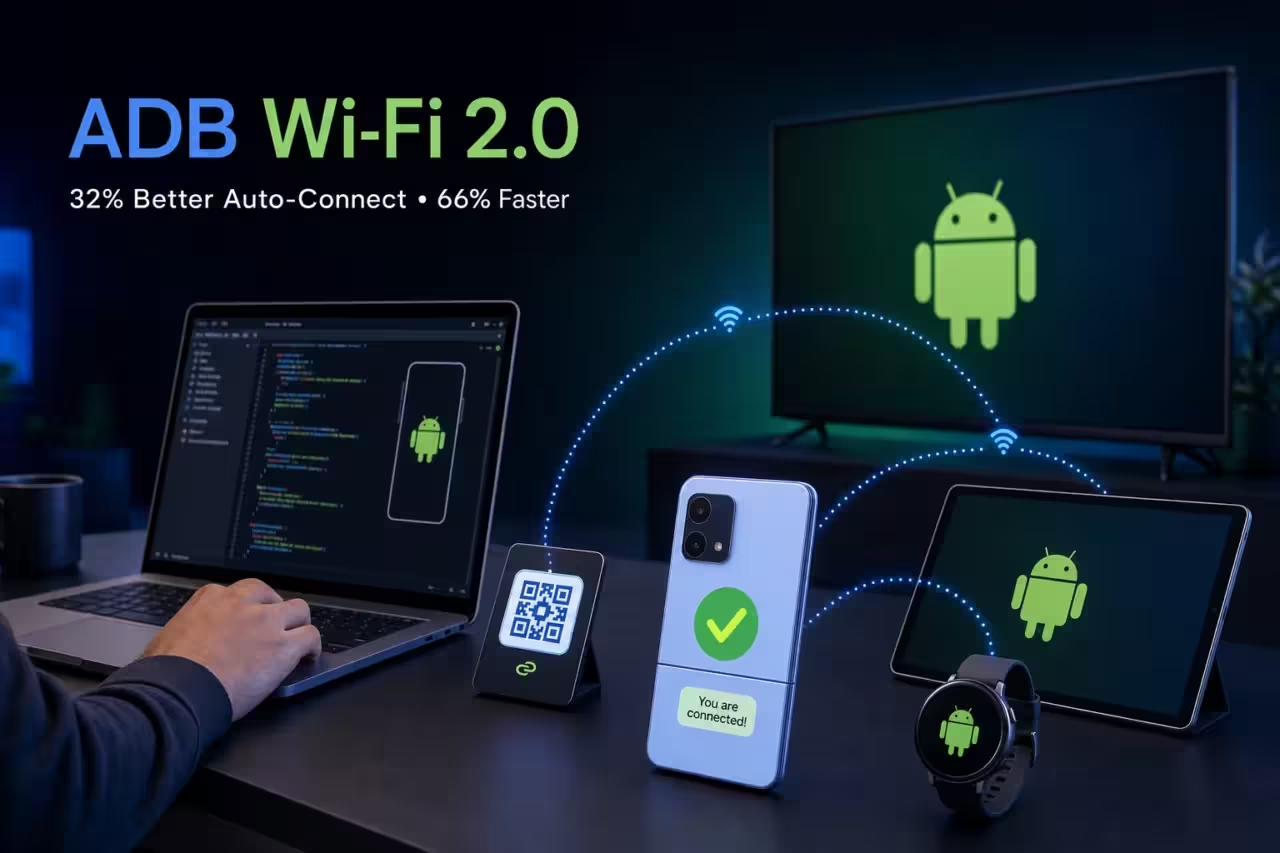
Next, the ADB daemon got smarter about trust. Connections are now automatically suspended when your computer and device are on an untrusted network, then resumed once you’re back on a trusted one. It’s a simple idea, but it prevents a lot of accidental exposure and prevents pointless reconnect churn.
Android Studio also plays a role. When you enable wireless debugging on a device, it should appear reliably in Android Studio’s Device Manager. No more waiting, no more manual reconnections. Quick and visible. Exactly what you want when you’re debugging.
Google says ADB Wi-Fi 2.0 delivers 66% faster connection speeds for the majority of connections and improves auto-connection rates by about 32%.
That’s a meaningful leap. Faster transfers. Fewer interruptions. Less fiddling. Developers can move on to the actual work: testing, iterating, shipping.
- Phones
- Tablets
- Wear OS watches
- Android TVs
Interested in trying it? Enable wireless debugging on your Android device and look for it in Android Studio’s Device Manager. Google’s release notes have the exact steps and troubleshooting tips if you run into snags.
Small change. Big difference. Wireless debugging just stopped being the weak link in many development workflows.
.webp "Microsoft Nearly Joined the Cursor Bid War")

“I love exploring gadgets, apps, and trends that redefine how we connect, work, and play in a digital world.”

Discussion
Leave a Comment
Comments
No comments yet. Be the first.